


CHAPTER- 03 :
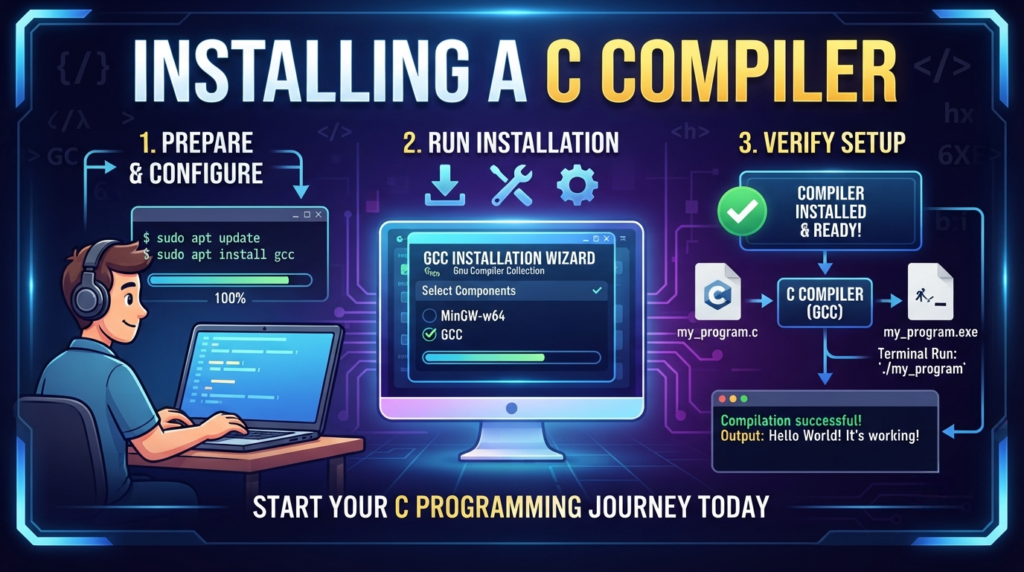
Installing a C Compiler
Installing a C compiler is the first practical step toward learning C programming. Whether you choose GCC, MinGW-w64, Code::Blocks, Clang, or another compiler, the installation process is straightforward when you follow the correct steps.
After installation, verify your compiler, write your first Hello, World! program, and begin practicing regularly. Building small projects consistently is the best way to improve your C programming skills.
📚 C Programming Complete Course Structure
✅ Chapter 1: C Programming Fundamentals
✅ Chapter 2: History and Evolution of C Language
✅ Chapter 3: Installing a C Compiler (Current Chapter)
🔜 Chapter 4: Writing Your First C Program
🔜 Chapter 5: Structure of a C Program
🔜 Chapter 6: Variables and Data Types
🔜 Chapter 7: Operators in C
🔜 Chapter 8: Input and Output Functions
🔜 Chapter 9: Conditional Statements
🔜 Chapter 10: Loops in C
🔜 Chapter 11: Arrays
🔜 Chapter 12: Strings
🔜 Chapter 13: Functions
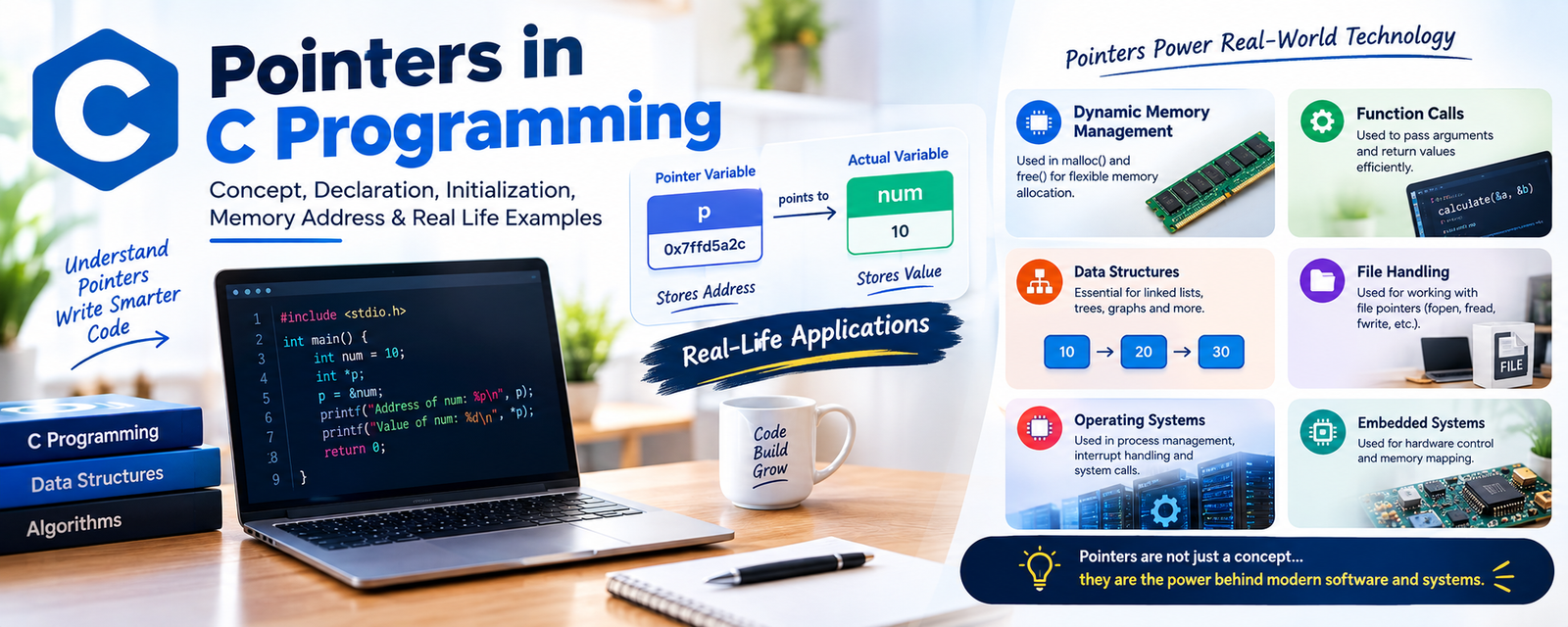
🔜 Chapter 14: Pointers
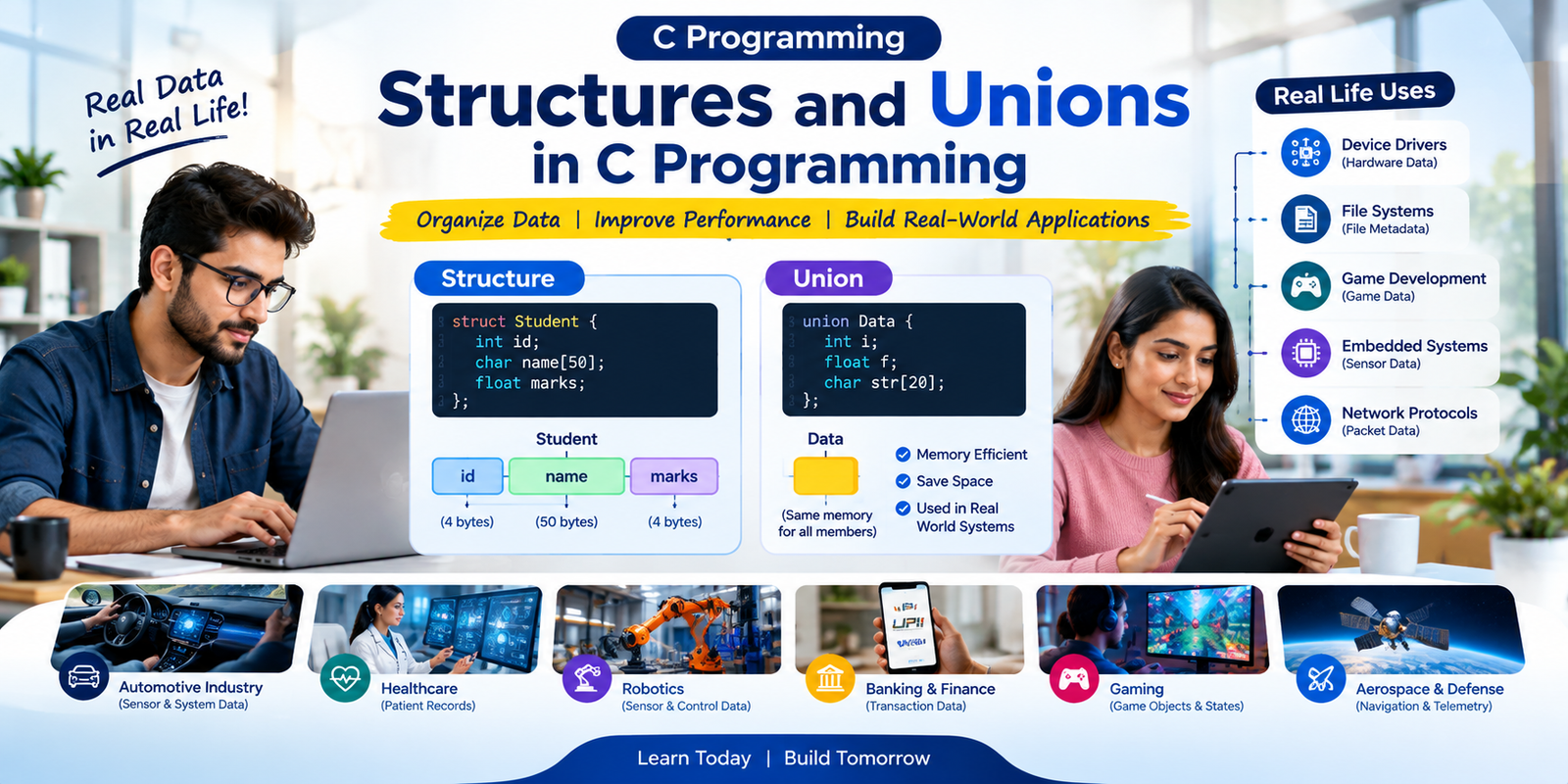
🔜 Chapter 15: Structures and Unions
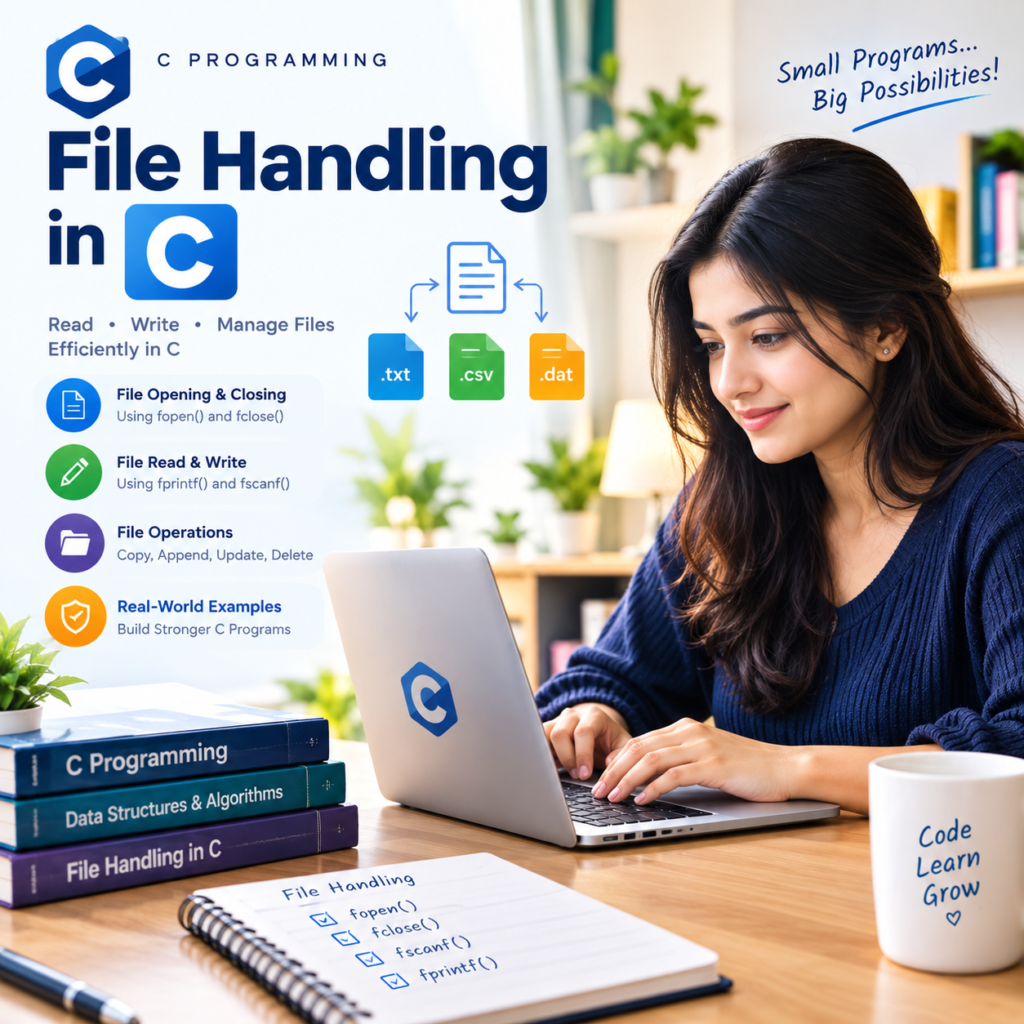
🔜 Chapter 16: File Handling
How to Install a C Compiler on Windows, macOS & Linux: Complete Beginner’s Guide
Table of Contents
- Introduction
- What Is a C Compiler?
- Why Do You Need a C Compiler?
- How Does a C Compiler Work?
- Types of C Compilers
- System Requirements
- Best C Compilers for Beginners
- How to Install a C Compiler on Windows
- How to Install GCC Using MinGW-w64
- How to Install Code::Blocks
- How to Install a C Compiler on macOS
- How to Install a C Compiler on Linux
- How to Verify the Installation
- Writing Your First C Program
- Compiling and Running a C Program
- Common Installation Errors and Solutions
- Best Practices
- Frequently Asked Questions (FAQs)
Introduction
If you want to learn C programming, the first step is installing a C compiler on your computer. A compiler converts the C source code you write into machine code that your computer can understand and execute.
Whether you use Windows, macOS, or Linux, installing a C compiler is simple when you follow the correct steps. This guide explains everything a beginner needs to know, from choosing the right compiler to compiling and running the first C program.
What Is a C Compiler?
A C compiler is software that translates C programming language source code into executable machine code.
When you write a program in a .c file, the compiler checks your code for errors and converts it into a program that the operating system can run.
Example
Source Code:
printf("Hello, World!");
Compiler Output:
- Checks syntax
- Detects errors
- Generates executable file
- Runs the program
Without a compiler, a C program cannot be executed.
Why Do You Need a C Compiler?
A C compiler is essential because it:
- Converts C code into machine language
- Detects syntax and programming errors
- Creates executable programs
- Improves code optimization
- Helps developers debug applications
How Does a C Compiler Work?
A compiler generally follows these stages:
- Source Code
- Preprocessing
- Compilation
- Assembly
- Linking
- Executable File
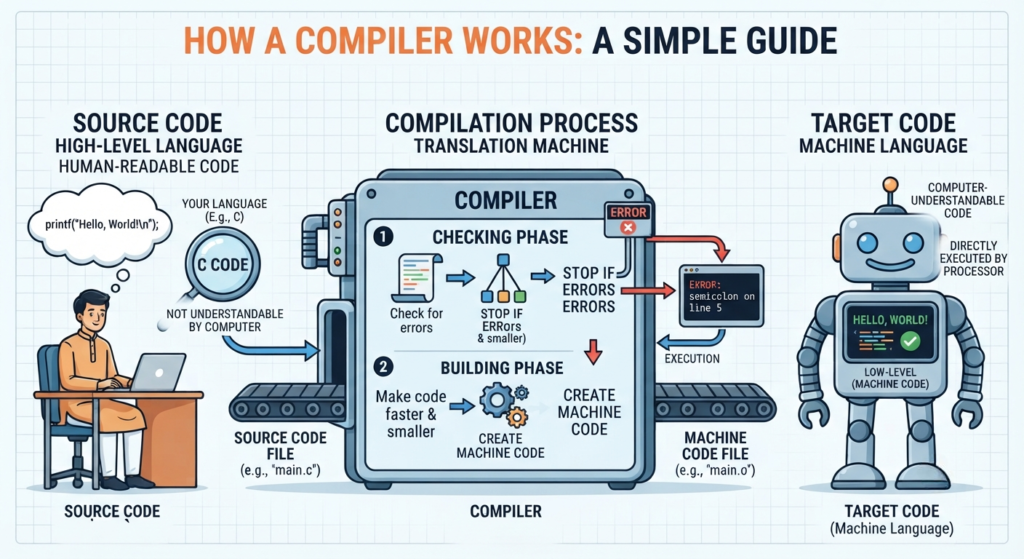
Compilation Flow
Source Code (.c)
        ↓
Preprocessor
        ↓
Compiler
        ↓
Assembler
        ↓
Linker
        ↓
Executable Program
Types of C Compilers
Some popular C compilers include:
- GCC (GNU Compiler Collection)
- Clang
- Microsoft Visual C Compiler (MSVC)
- Tiny C Compiler (TCC)
- Intel C Compiler
Each compiler supports the C language while offering different features and optimizations.
System Requirements
Before installing a C compiler, ensure your system has:
Windows
- Windows 10 or Windows 11
- At least 4 GB RAM
- 500 MB free storage
macOS
- macOS with Xcode Command Line Tools
- Internet connection
Linux
- Ubuntu, Debian, Fedora, CentOS, or another distribution
- Package manager access
Best C Compilers for Beginners
1. GCC
- Free and open source
- Most popular compiler
- Cross-platform support
2. Code::Blocks
- Beginner-friendly IDE
- Includes compiler option
- Easy interface
3. Dev-C++
- Lightweight
- Good for beginners
- Supports C and C++
4. Visual Studio Community
- Professional IDE
- Powerful debugging tools
How to Install a C Compiler on Windows
There are multiple methods.
Method 1: Install Code::Blocks
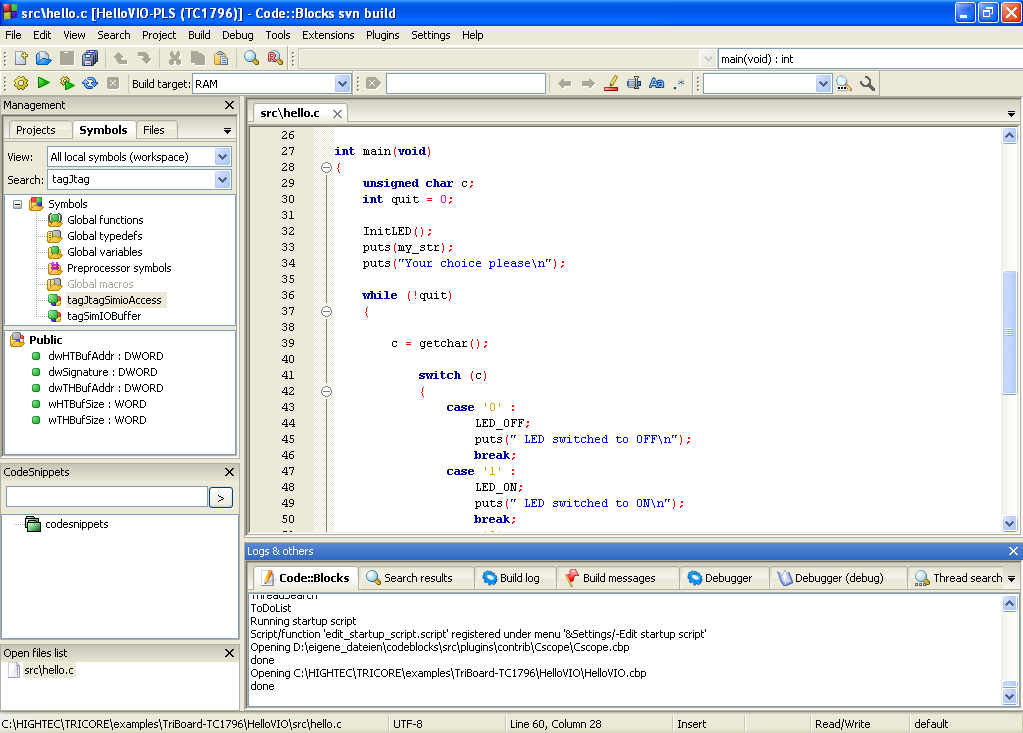
Step 1
Download the installer from the official Code::Blocks website.
Step 2
Choose the version that includes the MinGW compiler.
Step 3
Run the installer.
Step 4
Click Next until installation completes.
Step 5
Launch Code::Blocks.
Step 6
Create a new C project.
Step 7
Write and run your first program.
How to Install GCC Using MinGW-w64
Step 1
Download MinGW-w64.
Step 2
Install GCC.
Step 3
Add the bin folder to the Windows PATH environment variable.
Example:
C:\mingw64\bin
Step 4
Open Command Prompt.
Run:
gcc --version
If GCC version appears, the installation is successful.
What is GCC?
GCC (GNU Compiler Collection) is a free and open-source compiler that converts programming languages like C, C++, Objective-C, Fortran, Go, and Ada into machine code that a computer can execute.
For beginners learning C programming, GCC is one of the most popular and widely used C compilers in the world. It is available for Windows, Linux, and macOS.
In Simple Words
Imagine you write a C program like this:
printf("Hello, World!");The computer cannot understand C language directly. GCC translates your C code into machine language (binary code) so the computer can run it.
Why is GCC Used?
- Free and open-source
- Fast and reliable
- Supports multiple programming languages
- Available for Windows, Linux, and macOS
- Widely used by students, developers, and professionals
- Follows the latest C language standards
Example
If your C program is named hello.c, you can compile it using GCC with this command:
gcc hello.c -o helloAfter compiling:
hello.c→ Source codehello(orhello.exeon Windows) → Executable program
Note for Windows Users
Windows does not include GCC by default. To use GCC on Windows, you need to install it through tools like MinGW-w64 or MSYS2. Linux usually includes GCC or lets you install it easily using the package manager, while macOS provides a compatible compiler through Xcode Command Line Tools.
What is MinGW-w64?
MinGW-w64 (Minimalist GNU for Windows) is a free and open-source development tool that allows you to use the GCC compiler on Windows. Since Windows does not come with GCC by default, MinGW-w64 provides the necessary GCC compiler and tools to compile and run C and C++ programs.
In Simple Words
Think of it like this:
- GCC = The compiler that converts your C code into machine code.
- MinGW-w64 = The package that installs and provides GCC on Windows.
Without MinGW-w64 (or a similar tool), you cannot use the gcc command on Windows.
Why is MinGW-w64 Used?
- Installs the GCC compiler on Windows
- Lets you compile and run C and C++ programs
- Free and open source
- Supports both 32-bit and 64-bit Windows
- Works with IDEs like Code::Blocks, Visual Studio Code, and others
Example
After installing MinGW-w64, you can compile a C program using:
gcc hello.c -o helloThen run the program:
helloGCC vs MinGW-w64
| GCC | MinGW-w64 |
|---|---|
| A compiler | A tool/package that provides GCC on Windows |
| Converts C code into machine code | Installs GCC and related tools on Windows |
| Works on multiple operating systems | Designed specifically for Windows |
How to Install Code::Blocks on Windows
1. Download Code::Blocks
Official Download Page: Code::Blocks Downloads
Windows users: Download codeblocks-25.03mingw-setup.exe (includes GCC compiler).
2. Run the Installer
Double-click the downloaded .exe file.
Click Next → I Agree → Next → Install.
3. Launch Code::Blocks
Open Code::Blocks from the Start Menu.
4. Create a New Project
File → New → Project
Select Console Application.
Choose C (or C++) → Next.
5. Write Your Program
Enter your C code in main.c.
6. Compile & Run
Press F9 or click Build and Run.
Your program output will appear in the console window.
Tip: Always download the mingw-setup.exe version. It already includes the GCC compiler, so you don’t need to install a compiler separately.
Steps: In Short
- Download installer
- Install software
- Open IDE
- Create project
- Write program
- Compile
- Run
Code::Blocks is one of the easiest IDEs for beginners because it combines an editor, compiler support, and debugging tools in one application.
What is an IDE?
IDE (Integrated Development Environment) is a software application that provides everything you need to write, compile, debug, and run programs in one place.
Instead of using separate tools for writing code, compiling, and debugging, an IDE combines all these features into a single interface, making programming easier and faster.
In Simple Words
An IDE is like a complete workspace for programmers. It lets you:
- Write code
- Save files
- Compile programs
- Find and fix errors (debugging)
- Run your program
—all from one application.
Main Features of an IDE
- Code Editor – Write and edit your source code.
- Compiler Integration – Compile your code into an executable program.
- Debugger – Find and fix errors in your program.
- Syntax Highlighting – Displays different parts of the code in different colors for better readability.
- Auto-completion – Suggests keywords and functions while typing.
- Project Management – Organizes multiple files in one project.
Popular IDEs for C Programming
- Code::Blocks
- Visual Studio Code (with C/C++ extensions)
- Visual Studio
- Dev-C++
- CodeLite
- Eclipse CDT
IDE vs Compiler
| IDE | Compiler |
|---|---|
| A complete software for writing, compiling, debugging, and running code | A tool that converts source code into machine code |
| Includes a code editor and many development tools | Only compiles the code |
| Example: Code::Blocks, Visual Studio Code, Dev-C++ | Example: GCC, Clang, MSVC |
How to Install a C Compiler on macOS
Apple provides development tools through Xcode.
Step 1
Open Terminal.
Step 2
Run:
xcode-select --install
Step 3
Wait for installation.
Step 4
Verify:
gcc --version
or
clang --version
How to Install a C Compiler on Linux
Most Linux distributions already support GCC.
Ubuntu/Debian
sudo apt update
sudo apt install build-essential
Fedora
sudo dnf install gcc
Verify
gcc --version
How to Verify the Installation
Open Terminal or Command Prompt.
Type:
gcc --version
If version information appears, your compiler is ready.
Example:
gcc (GCC) 14.x.x
Writing Your First C Program
Create a file named:
hello.c
Write:
#include <stdio.h>

int main()
{
    printf("Hello, World!");
    return 0;
}
Save the file.
Compiling and Running a C Program
Compile:
gcc hello.c -o hello
Run:
Windows
hello
macOS/Linux
./hello
Output:
Hello, World!
Common Installation Errors and Solutions
GCC Is Not Recognized
Cause
PATH variable is not configured.
Solution
Add the GCC bin folder to the system PATH.
Missing Compiler
Cause
Compiler not installed.
Solution
Install GCC or Code::Blocks with MinGW.
Permission Denied
Cause
Insufficient permissions.
Solution
Run Terminal as Administrator (Windows) or use appropriate permissions on Linux/macOS.
Missing Header Files
Cause
Incomplete installation.
Solution
Reinstall the compiler and development tools.
Best Practices
- Download compilers from official sources.
- Keep the compiler updated.
- Learn basic terminal commands.
- Practice by writing small programs daily.
- Organize projects in separate folders.
- Read compiler error messages carefully instead of ignoring them.
Frequently Asked Questions (FAQs)
1. Which C compiler is best for beginners?
Code::Blocks with MinGW and GCC are excellent choices for beginners because they are free and easy to use.
2. Is GCC free?
Yes. GCC is completely free and open source.
3. Can I write C programs without installing a compiler?
Yes. You can use online C compilers, but installing a local compiler provides better performance and offline access.
4. Which compiler is used most?
GCC is one of the most widely used C compilers in the world.
5. Is Code::Blocks a compiler?
No. Code::Blocks is an IDE. It can include or work with a compiler such as GCC (MinGW).
6. Can I install multiple C compilers?
Yes. You can install multiple compilers and choose the one you want for different projects.
7. Which operating systems support GCC?
GCC supports Windows, Linux, and macOS.
8. How can I check if GCC is installed?
Run gcc --version in Command Prompt or Terminal. If the version appears, GCC is installed.
9. Do I need an IDE to learn C?
No. You can use GCC with a text editor, but an IDE makes coding easier.
10. Can I use Visual Studio Code for C programming?
Yes. Install the C/C++ extension and configure GCC to write, compile, and run C programs in Visual Studio Code.
Mujtaba Ansari is a Software Engineer, Founder & CEO of The Tech Earth. He writes about technology, AI, software, cybersecurity, blogging, Health tech, Agri Tech and digital trends to help readers stay updated with the latest innovations.
Was this article helpful?
Your feedback helps us improve The Tech Earth.
Helpful: 0 Not helpful: 0