

What is Microsoft Windows? Explained Features, Uses & Benefits
Introduction to Microsoft Windows
Microsoft Windows is one of the most popular and widely used operating systems in the world. It was developed by Microsoft, a leading technology company founded by Bill Gates and Paul Allen. Microsoft Windows is designed to make computers easy to use for both beginners and professionals.
Windows is a GUI-based (Graphical User Interface) operating system, which means users can interact with the computer through graphical icons, menus, buttons, and windows instead of typing complex commands. This user-friendly design makes Windows simple, fast, and convenient for daily tasks.
The term “Windows” comes from the rectangular boxes called windows that appear on the computer screen. These windows help users open multiple applications, switch between programs, and manage tasks efficiently.
Today, Microsoft Windows is used in homes, schools, offices, businesses, and industries worldwide because of its smooth performance, advanced features, and wide software compatibility.
Microsoft Windows was first developed by Microsoft in 1983, and the first version, Windows 1.0, was officially released on November 20, 1985.
Main Features of Microsoft Windows
1. User-Friendly Interface
Microsoft Windows provides a simple and easy-to-understand interface. Users can operate the system using icons, menus, buttons, and the mouse without technical knowledge.
2. Graphical User Interface (GUI)
Windows uses a graphical environment where users can open files, folders, and applications visually. This makes computer operations faster and easier compared to command-based systems.
3. Multitasking Support
Windows allows users to run multiple applications at the same time. For example, you can browse the internet, listen to music, and work on documents simultaneously.
4. File Management System
Windows offers an efficient file management system through File Explorer. Users can easily create, copy, move, rename, and delete files and folders.
5. Hardware Compatibility
Microsoft Windows supports a wide range of hardware devices such as printers, scanners, keyboards, webcams, and external drives.
6. Software Compatibility
Most software applications and programs are designed to work smoothly on Windows, including office software, games, editing tools, and business applications.
7. Internet and Networking Features
Windows provides built-in internet and networking support, allowing users to connect to Wi-Fi, share files, browse websites, and communicate online easily.
8. Security Features
Windows includes security tools like Windows Defender, Firewall, password protection, and regular security updates to protect the system from viruses and malware.
9. Multimedia Support
Windows supports multimedia functions such as watching videos, listening to music, editing photos, and playing games.
10. Automatic Updates
Microsoft regularly provides updates to improve performance, add new features, and fix security issues.
Benefits of Microsoft Windows
1. Easy to Learn and Use
Windows is beginner-friendly, making it easy for students, professionals, and general users to operate computers without advanced technical skills.
2. Wide Software Availability
A large number of applications and programs are available for Windows, making it suitable for education, business, entertainment, and professional work.
3. Better Productivity
With multitasking and easy navigation, users can complete tasks faster and improve productivity.
4. Excellent Gaming Support
Windows is considered one of the best operating systems for gaming because it supports high-performance games and graphics technologies.
5. Strong Hardware Support
Users can connect almost any hardware device to a Windows computer without compatibility issues.
6. Regular Security Updates
Microsoft continuously releases updates and patches to keep Windows secure and stable.
7. Business and Office Friendly
Windows is widely used in offices and companies because it supports professional tools, networking, and business software.
8. Multimedia and Entertainment
Windows provides a great experience for watching movies, listening to music, video editing, and online streaming.
9. Customization Options
Users can customize themes, wallpapers, settings, and layouts according to their preferences.
10. Global Popularity and Support
Because Windows is used worldwide, users can easily find tutorials, software, technical support, and online help.
Some Important Uses of Microsoft Windows
1. Educational Purposes
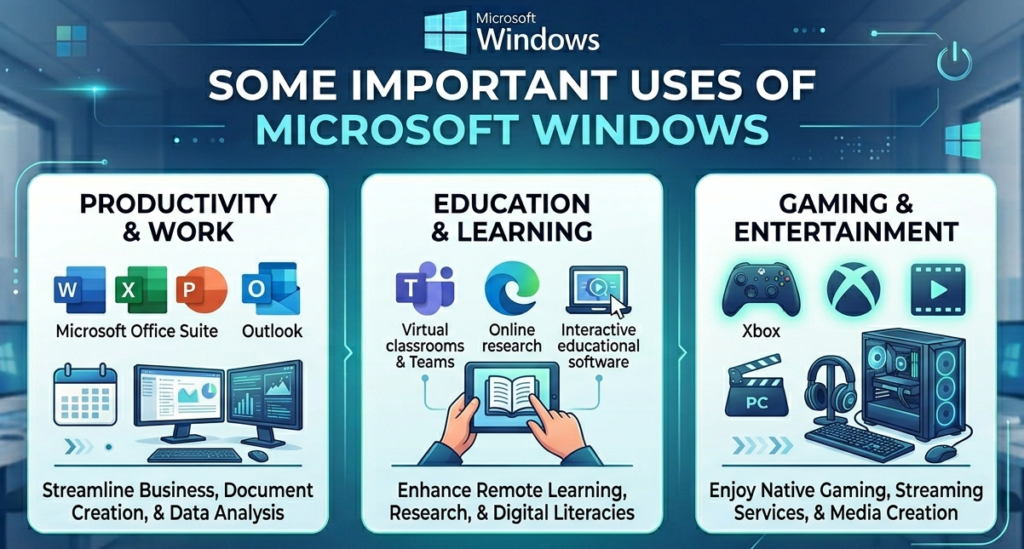
Microsoft Windows is widely used in schools, colleges, and universities for online learning, creating assignments, presentations, research work, and computer education.
2. Office and Business Work
Windows is commonly used in offices and businesses for preparing documents, managing data, sending emails, creating spreadsheets, presentations, and handling daily business operations.
3. Internet Browsing
Users can access the internet through web browsers on Windows to search information, watch videos, use social media, attend online meetings, and communicate online.
4. Gaming
Windows is one of the best operating systems for gaming because it supports high-quality graphics, advanced gaming software, and a wide range of PC games.
5. Multimedia and Entertainment
People use Windows to watch movies, listen to music, edit photos, create videos, and enjoy multimedia entertainment.
6. Software Development and Programming
Programmers and developers use Windows for coding, software development, website creation, app development, and testing applications.
7. Graphic Designing and Video Editing
Windows supports professional designing and editing software used by graphic designers, photographers, and video editors.
8. Data Storage and File Management
Users can store, organize, transfer, and manage files and folders efficiently using Windows File Explorer.
9. Networking and Communication
Windows helps users connect to networks, share files, use printers, attend video conferences, and communicate through emails and messaging apps.
10. Banking and Online Services
People use Windows computers for online banking, digital payments, shopping, ticket booking, and accessing various online services safely.
11. Industrial and Professional Use
Many industries, hospitals, banks, and government offices use Windows-based systems for managing records, operations, and professional tasks.
12. Personal Daily Use
Windows is also used for daily personal activities such as studying, entertainment, social networking, content creation, and managing personal documents.
What is the Evolution of Microsoft Windows? (History of MS Windows)
Microsoft introduced its first Graphical User Interface (GUI)-based operating system, Windows 1.0, in 1985. Since then, Microsoft has continuously developed and upgraded Windows with advanced features, better security, improved performance, and user-friendly interfaces.
Over the years, Microsoft Windows has become one of the most widely used operating systems in the world for personal, educational, and professional use.
Timeline of Microsoft Windows Versions
| Windows Version | Release Year |
|---|---|
| Windows 1.0 | 1985 |
| Windows 2.0 | 1987 |
| Windows 3.0 | 1990 |
| Windows NT (New Technology) | 1993 |
| Windows 95 | August 1995 |
| Windows 98 | June 1998 |
| Windows 2000 | February 2000 |
| Windows ME (Millennium Edition) | September 2000 |
| Windows XP (Experience) | October 2001 |
| Windows Vista | January 2007 |
| Windows 7 | October 2009 |
| Windows 8 | October 2012 |
| Windows 8.1 | October 2013 |
| Windows 10 | July 2015 |
| Windows 11 | October 2021 |
Growth and Development of Microsoft Windows
Each new version of Microsoft Windows introduced better technology, enhanced security, improved graphics, multitasking features, internet support, and a smoother user experience. From the basic graphical interface of Windows 1.0 to the modern design and AI-powered features of Windows 11, Microsoft Windows has continuously evolved to meet the changing needs of users worldwide.
Today, Windows is widely used in homes, schools, offices, businesses, gaming, programming, and multimedia industries because of its reliability, compatibility, and ease of use.
Windows Accessories in Microsoft Windows
What are Windows Accessories?
Microsoft Windows provides several built-in utility programs known as Windows Accessories. These small but useful applications help users perform everyday tasks such as text editing, drawing, calculations, screenshot capturing, and character formatting. Windows Accessories are designed to improve productivity and make computer operations easier for users.
These tools are simple, lightweight, and commonly used in schools, offices, businesses, and personal computers.
List of Important Windows Accessories
1. Notepad
Notepad is a basic text editor used to create and edit plain text files. It is commonly used for writing notes, simple coding, and editing text documents without formatting.
Uses of Notepad:
- Writing quick notes
- Editing text files
- Creating HTML or programming files
- Saving plain text documents
2. WordPad
WordPad is a basic word processing program that provides more formatting options than Notepad. Users can add fonts, colors, images, and text styles to documents.
Uses of WordPad:
- Creating formatted documents
- Writing letters and reports
- Adding images and text styling
- Basic document editing
3. Paint
Paint is a simple graphics and drawing application available in Windows. It allows users to create drawings, edit images, color pictures, and perform basic image editing tasks.
Uses of Paint:
- Drawing and sketching
- Editing images
- Coloring pictures
- Cropping and resizing images
4. Calculator
The Windows Calculator is a useful tool for performing mathematical calculations. It supports both basic and scientific calculations.
Uses of Calculator:
- Basic arithmetic calculations
- Scientific calculations
- Percentage and unit conversions
- Financial and mathematical operations
5. Character Map
Character Map is a utility that displays special symbols, characters, and fonts available on the computer. Users can copy and insert special characters into documents.
Uses of Character Map:
- Inserting special symbols
- Accessing unique fonts and characters
- Using mathematical and foreign language symbols
6. Clipboard
Clipboard is a temporary storage area in Windows that stores copied or cut data such as text, images, and files until they are pasted elsewhere.
Uses of Clipboard:
- Copying and pasting text or files
- Storing temporary data
- Improving workflow efficiency
7. Snipping Tool
Snipping Tool is a screenshot utility in Windows that allows users to capture screenshots of the entire screen or selected areas.
Uses of Snipping Tool:
- Taking screenshots
- Capturing important information
- Sharing screen images
- Saving and editing screenshots
Benefits of Windows Accessories
- Easy to use for beginners and professionals
- Improves productivity and daily computer tasks
- Built-in tools available without extra installation
- Useful for education, office work, designing, and documentation
- Saves time with quick-access utilities
Desktop in Microsoft Windows
What is Desktop in Windows?
In Microsoft Windows, the Desktop is the first screen that appears after the operating system starts. It acts as the main workspace of the computer where users can access programs, files, folders, applications, and system tools easily.
The desktop provides a graphical environment that allows users to interact with the computer using icons, menus, task bars, and wallpapers. It helps users quickly open software, manage files, and perform different tasks efficiently.
When a computer is turned on, various graphical icons appear on the desktop screen. By clicking these icons, users can open applications, access folders, run programs, and perform multiple computer operations.
Desktop Icons in Windows
What are Desktop Icons?
Desktop Icons are small graphical symbols displayed on the desktop screen. These icons represent files, folders, programs, applications, or system utilities. Users can click or double-click these icons using the mouse to perform specific tasks on the computer.
Each icon has its own unique function and helps users quickly access important applications and system resources.
Types of Icons in Windows
Windows icons are generally divided into two main categories:
1. System Icons
System icons are default icons provided by Windows for accessing important system functions and utilities.
2. Shortcut Icons
Shortcut icons are duplicate links created for quick access to files, folders, or programs without opening their original location.
Important Desktop Icons in Microsoft Windows
1. My Computer / This PC
My Computer (now called This PC in modern Windows versions) is one of the most important desktop icons. It displays all storage devices and connected hardware available on the computer.
Functions of My Computer:
- Access Hard Disk partitions
- View CD/DVD drives and Pen Drives
- Open connected devices like printers, scanners, and cameras
- Manage files and storage devices
2. My Documents / Documents Folder
The Documents folder stores files and documents saved by the user. By default, many applications automatically save files in this folder unless another location is selected.
Uses of Documents Folder:
- Store personal files and documents
- Organize user data
- Quickly access saved work
3. My Network Places / Network
The Network icon helps users connect to other computers and devices through a network. It allows data sharing and resource sharing between connected systems.
Functions of Network:
- Connect to network devices
- Share files and folders
- Access shared printers and resources
- Exchange data between computers
4. Recycle Bin
The Recycle Bin temporarily stores deleted files and folders. When a file is deleted normally, it is moved to the Recycle Bin instead of being removed permanently.
Functions of Recycle Bin:
- Store deleted files temporarily
- Restore accidentally deleted files
- Permanently remove unwanted files
Important Note:
If a file is deleted using Shift + Delete, it bypasses the Recycle Bin and is permanently deleted from the computer.
5. Internet Explorer
Internet Explorer was a web browser developed by Microsoft for accessing websites and internet services. It allowed users to browse web pages, search information, and access online content.
Today, Internet Explorer has largely been replaced by Microsoft Edge in modern Windows versions.
6. Shortcut Icon
A Shortcut Icon is a quick-access link to a file, folder, or application. It helps users open programs faster without going to the original file location.
Shortcut icons usually contain a small arrow symbol that helps identify them as shortcuts.
Benefits of Shortcut Icons:
- Quick access to programs and files
- Saves time
- Improves desktop organization
- Easy navigation
Advantages of Desktop and Desktop Icons
- Easy access to applications and files
- User-friendly graphical interface
- Faster navigation and multitasking
- Improved productivity and workflow
- Simplifies computer operations for beginners and professionals
Plug and Play (PnP) in Microsoft Windows
What is Plug and Play?
Plug and Play (PnP) is an advanced feature of Microsoft Windows that automatically detects, installs, and configures newly connected hardware devices without requiring manual setup. When users connect devices such as a keyboard, mouse, printer, USB drive, scanner, webcam, speaker, or external hard disk, Windows identifies the hardware and installs the necessary drivers automatically.
This technology makes hardware installation faster, easier, and more convenient for users. In modern versions of Windows, most Plug and Play devices start working immediately after being connected to the computer.
Plug and Play technology has greatly improved the user experience by reducing the need for technical knowledge during hardware installation.
Features of Plug and Play
- Automatic hardware detection
- Automatic driver installation
- Easy device configuration
- Supports USB and external devices
- Reduces manual setup process
- Compatible with modern hardware components
Advantages of Plug and Play
- Saves time during hardware installation
- No need for technical expertise
- Reduces configuration errors
- Allows quick connection of devices
- Many devices work without restarting the computer
- Improves overall system efficiency and convenience
Examples of Plug and Play Devices
- USB Pen Drive
- Keyboard and Mouse
- Printer and Scanner
- Webcam
- Bluetooth Devices
- External Hard Drive
- Speakers and Headphones
Title Bar in Windows
What is a Title Bar?
The Title Bar is the horizontal bar located at the top of every application window in Microsoft Windows. It displays the name of the currently open program, application, file, folder, or document.
The Title Bar helps users identify which window is currently active on the screen. In Windows, the active window usually appears with a darker or highlighted color, while inactive windows appear lighter.
The Title Bar is an important part of the graphical user interface because it provides window controls and improves multitasking.
Components of the Title Bar
1. Program or Document Name
Displays the name of the currently open file or application.
2. Minimize Button
Temporarily hides the window and sends it to the taskbar without closing the application.
3. Maximize / Restore Button
Maximizes the window to full screen or restores it to its original size.
4. Close Button
Closes the application or active window completely.
5. Application Icon
Located on the left side of the Title Bar and represents the application program.
Functions of the Title Bar
- Displays the active application name
- Helps users identify open windows
- Allows users to move the window across the screen
- Provides quick access to window controls
- Supports multitasking and window management
Benefits of the Title Bar
- Easy navigation between applications
- Better window management
- Improves user experience
- Simplifies multitasking operations
Scroll Bar in Windows
What is a Scroll Bar?
A Scroll Bar is a navigation tool used to move content vertically or horizontally when the information displayed inside a window is larger than the visible screen area.
Scroll bars are commonly used in web browsers, documents, spreadsheets, folders, and software applications to help users access hidden content.
Without a scroll bar, users would not be able to view the complete information inside large documents or web pages.
Types of Scroll Bars
1. Vertical Scroll Bar
Used to move content up and down.
2. Horizontal Scroll Bar
Used to move content left and right.
Components of a Scroll Bar
- Scroll Arrows
- Scroll Box / Thumb
- Scroll Track
Functions of Scroll Bars
- Navigate through long documents
- View hidden content
- Move pages vertically and horizontally
- Improve accessibility and browsing experience
Advantages of Scroll Bars
- Easy content navigation
- Better reading experience
- Smooth movement through files and webpages
- Improves productivity while working with large data
Menu in Windows
What is a Menu?
A Menu is a list of commands, tools, or options available in an application or operating system. Menus help users perform different tasks by selecting commands from organized categories.
Menus simplify computer operations by providing easy access to functions without requiring users to memorize commands.
Types of Menus in Windows
1. Menu Bar
The Menu Bar is located at the top of an application window and contains options such as File, Edit, View, Insert, Format, and Help.
2. Drop-Down Menu
A menu that expands downward when clicked to display additional commands and options.
3. Context Menu
A shortcut menu that appears when the user right-clicks the mouse on a file, folder, or desktop area.
4. Start Menu
The Start Menu provides access to applications, settings, files, and system tools in Windows.
Functions of Menus
- Provides access to software commands
- Organizes features into categories
- Simplifies navigation inside applications
- Improves user interaction with programs
Advantages of Menus
- Easy to use for beginners
- Faster access to tools and features
- Improves productivity and workflow
- Reduces complexity in software operations
Windows Media Player in Microsoft Windows
What is Windows Media Player?
Windows Media Player is a digital media player and multimedia application developed by Microsoft for the Microsoft Windows operating system. It is used to play audio files, video files, and view images on a computer.
Windows Media Player allows users to enjoy music, movies, videos, and other multimedia content in an easy and organized way. It supports various multimedia formats and provides a user-friendly interface for managing digital media files.
This software is widely used for entertainment purposes such as listening to songs, watching films, creating playlists, and organizing media libraries.
Features of Windows Media Player
1. Audio Playback
Windows Media Player can play different types of audio files such as MP3, WAV, and WMA formats.
2. Video Playback
It supports video playback for various video formats, allowing users to watch movies, music videos, and clips smoothly.
3. Image Viewing
Users can also view digital images and slideshows through Windows Media Player.
4. Media Library Management
The software helps organize music, videos, and images into libraries for easy access and management.
5. Playlist Creation
Users can create custom playlists to play their favorite songs and videos in sequence.
6. CD and DVD Support
Windows Media Player supports playing audio CDs, video DVDs, and burning files to discs.
7. Streaming Support
It allows users to stream online audio and video content over the internet.
8. Equalizer and Sound Enhancement
The player provides sound adjustment features such as equalizer controls for better audio quality.
Uses of Windows Media Player
- Listening to music and songs
- Watching movies and videos
- Viewing digital photos and images
- Managing multimedia collections
- Creating playlists for entertainment
- Playing CDs and DVDs
- Streaming online media content
Advantages of Windows Media Player
- Simple and user-friendly interface
- Supports multiple audio and video formats
- Free and pre-installed in many Windows versions
- Easy media organization and playback
- Provides good multimedia experience
How to Shut Down a Computer in Microsoft Windows
What is Shutting Down a Computer?
Shutting down a computer means properly closing all running programs and safely turning off the operating system and hardware. In Microsoft Windows, users should always follow the correct shutdown process to prevent data loss, software errors, or hardware damage.
Improperly turning off the computer, such as directly switching off the power supply, may affect system performance and can sometimes damage important files or operating system data.
Steps to Shut Down a Computer in Windows
Follow these simple steps to safely shut down a Windows computer:
Step 1: Save Your Work
Before shutting down the computer, save all open files, documents, and projects to avoid losing important data.
Step 2: Close Running Applications
Close all active programs and applications running on the computer.
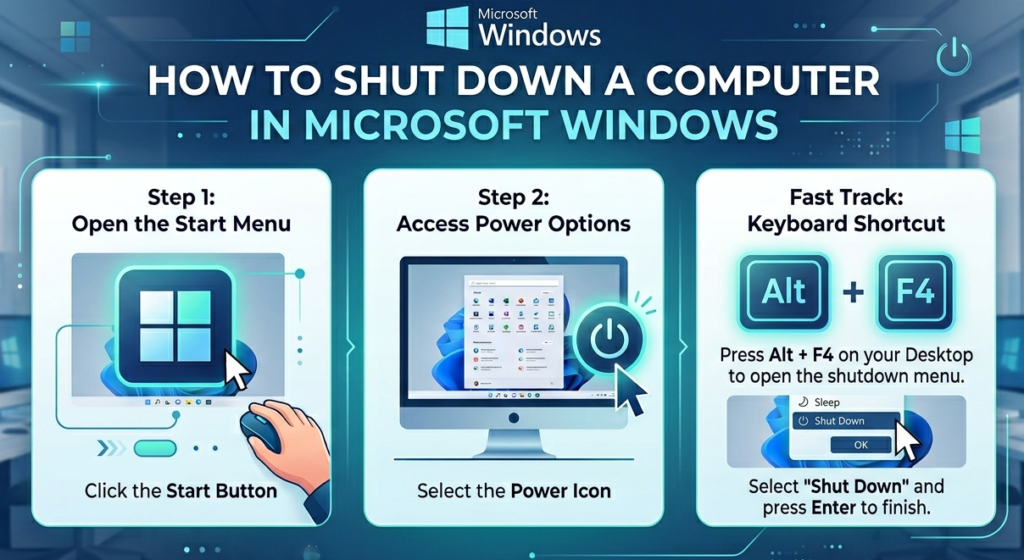
Step 3: Click the Start Button
Click the Start Menu button located on the taskbar.
Step 4: Select the Power Option
From the Start Menu, click the Power option.
Step 5: Click on Shut Down
Select the Shut Down option. Windows will close all programs and safely turn off the computer.
Step 6: Turn Off the Main Power Supply
After the computer shuts down completely, you can switch off the electricity supply if required.
Shortcut Key to Shut Down a Computer
Windows also provides a quick keyboard shortcut for shutting down the computer.
Shortcut Method:
Press:
Alt + F4 → Enter
This shortcut opens the shutdown dialog box and allows users to quickly shut down the system.
Advantages of Proper Shutdown
- Prevents data loss
- Protects hardware components
- Improves system stability
- Reduces software errors
- Helps maintain computer performance
- Safely closes all running applications
Important Points About Shutting Down
- Always save your work before shutdown
- Avoid forcefully turning off the computer
- Use proper shutdown options provided by Windows
- Close unnecessary background applications
- Wait until the system powers off completely
Other Power Options in Windows
1. Restart
Restarts the computer by shutting it down and starting it again automatically.
2. Sleep Mode
Temporarily saves the current session in memory while using very little power.
3. Hibernate
Saves the current session to the hard drive and completely powers off the computer.
Microsoft Windows Objective Questions (MCQs) with Answers
1. When was Windows 3.0 released?
(a) 1990
(b) 1991
(c) 1993
(d) 1992
(e) None of these
Answer: (a) 1990
2. File extension is used to:
(a) Identify the type of file
(b) Give a file name
(c) Identify a file
(d) All of the above
(e) None of these
Answer: (a) Identify the type of file
3. When a new program is installed on a computer, it is usually added to which menu?
(a) Desktop Program Menu
(b) All Programs Menu
(c) Select Program Menu
(d) Start Program Menu
(e) All of the above
Answer: (b) All Programs Menu
4. In a Graphical User Interface (GUI), small graphical pictures used to represent programs are called:
(a) File
(b) Figure
(c) Video
(d) Icon
(e) Folder
Answer: (d) Icon
5. In Windows, cut or copied data is temporarily stored in:
(a) Notepad
(b) Format Painter
(c) Clipboard
(d) Character Map
(e) None of these
Answer: (c) Clipboard
6. Which menu is generally used for printing documents?
(a) Tools
(b) File
(c) Edit
(d) All of the above
(e) None of these
Answer: (b) File
7. Who introduced the Graphical User Interface (GUI)?
(a) Apple Computer
(b) Microsoft
(c) Idea Company
(d) Xerox Corporation
(e) None of these
Answer: (d) Xerox Corporation
8. When was Windows 8 released?
(a) 2010
(b) 1995
(c) 2012
(d) 2016
(e) 2007
Answer: (c) 2012
9. A list of commands and options in software is available in:
(a) Toolbar
(b) Title Bar
(c) File
(d) Menu Bar
(e) None of these
Answer: (d) Menu Bar
10. What is the file extension of a Word document?
(a) TXT
(b) WRD
(c) DOC
(d) All of the above
(e) None of these
Answer: (c) DOC
11. MS Windows is which type of software?
(a) MUI
(b) GUI
(c) LUI
(d) CUI
(e) None of these
Answer: (b) GUI
12. Graphical User Interface (GUI) was originally developed by:
(a) Microsoft
(b) Apple Computer
(c) Xerox Corporation
(d) None of these
(e) All of these
Answer: (c) Xerox Corporation
13. Which bar displays icons of currently running programs?
(a) Menu Bar
(b) Taskbar
(c) Title Bar
(d) Status Bar
(e) All of these
Answer: (b) Taskbar
14. The file extension of a Word document is:
(a) DOC
(b) TOC
(c) WRD
(d) None of these
(e) All of these
Answer: (a) DOC
15. Which statement about file names is incorrect?
(a) Files may have the same name or same extension, but not both in the same folder
(b) Every file in a folder has a unique name
(c) File extension indicates file type
(d) File extension appears before the dot (.)
(e) None of these
Answer: (d) File extension appears before the dot (.)
16. To save an existing document with a different name, you should use:
(a) Retype the document and save it with a new name
(b) Save As command
(c) Copy and paste the original document
(d) Paste the document in another location and rename it
(e) None of these
Answer: (b) Save As command
17. The name given by the user to a document is called:
(a) File Name
(b) User Name
(c) Data
(d) None of these
(e) All of these
Answer: (a) File Name
18. Which option is used to increase or decrease mouse cursor speed?
(a) Settings
(b) Control
(c) Control Panel
(d) Drive
(e) All of the above
Answer: (c) Control Panel
19. Which of the following helps users know about computer storage and available drives?
(a) My Computer
(b) My Documents
(c) My Briefcase
(d) My Search
(e) None of these
Answer: (a) My Computer
20. Which keys are commonly used in combination with other keys for shortcuts and special functions?
(a) Control and Alt
(b) Function and Toggle
(c) Delete and Insert
(d) Caps Lock and Num Lock
(e) None of these
Answer: (a) Control and Alt

Mujtaba Ansari is a Software Engineer, Founder & CEO of The Tech Earth. He writes about technology, AI, software, cybersecurity, blogging, Health tech, Agri Tech and digital trends to help readers stay updated with the latest innovations.