


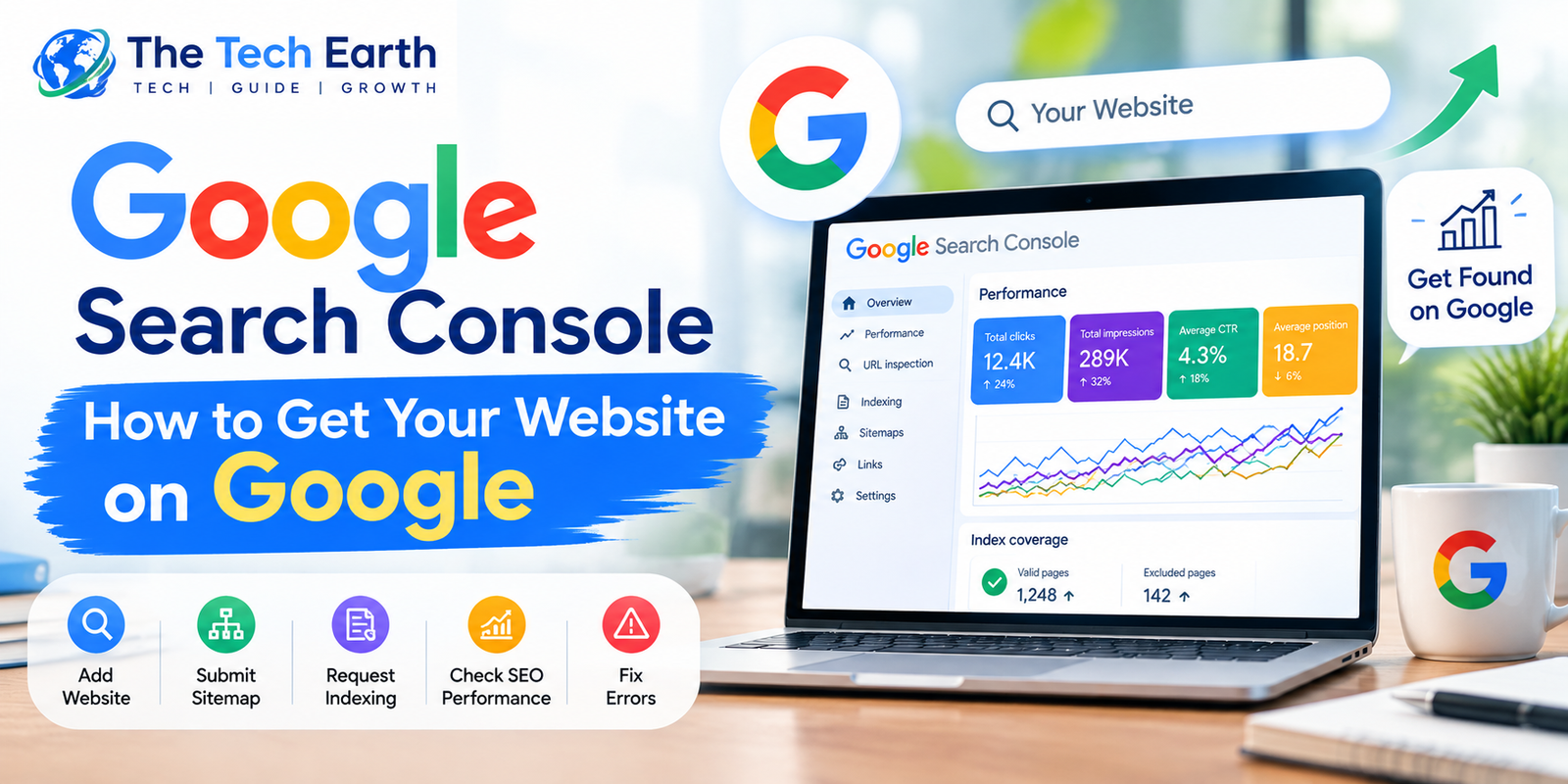
Google Search Console: How to Get Your Website on Google Search (Complete Guide)
Creating a professional website is not enough. You also want people to find your website on Google Search. Every website owner, blogger, and business owner wants their website to reach more people and appear in relevant search results.
This is where Google Search Console (GSC) can help.
Google Search Console is a free tool from Google that helps you understand how your website performs in Google Search. You can check whether Google can find and index your pages, see which search keywords bring people to your website, and identify possible indexing problems.
Whether you are a student, entrepreneur, business owner, blogger, freelancer, employee, or website owner, this guide will help you understand Google Search Console in simple English.
In this article, we will learn how to set up Google Search Console, add and verify a website, submit a sitemap, request indexing for new articles, check important reports, and fix common indexing problems with practical examples.
What Is Google Search Console?
Google Search Console (GSC) is a free tool that helps website owners monitor and understand their website’s performance in Google Search.
With Google Search Console, you can check whether Google has indexed your website pages, discover which search queries show your website in Google Search results, and identify possible problems that may affect your pages.
For example, suppose you have a website called The Tech Earth and publish an article titled “What Is Artificial Intelligence?”
You can use Google Search Console to check whether Google has indexed that article and see which search queries show it in Google Search results.
What Can You Do with Google Search Console?
You can use Google Search Console to:
- Check whether Google can access and crawl your website pages.
- Check how your website appears in Google Search.
- See how many pages Google has indexed.
- Discover which search queries show your website in search results.
- Check clicks, impressions, click-through rate (CTR), and average position.
- Find possible indexing and technical problems.
- Monitor your website’s search performance over time.
Important Note: Adding your website to Google Search Console does not guarantee first-page rankings. GSC helps you identify problems and understand your website’s performance. You must use this information to improve your website, content, and SEO.
How Does Google Search Console Work?
To understand how your website appears on Google, you need to know three important terms: Crawling, Indexing, and Ranking.
1. What Is Crawling?
Crawling is the process in which Google discovers and tries to access your website pages using automated systems called Googlebot.
Example: You publish a new article on your website. Googlebot may discover the article and try to access its content.
2. What Is Indexing?
Indexing is the process in which Google analyzes a page and may add it to its search index.
Example: Google processes your new article and adds it to its index. The article may then become eligible to appear in Google Search results.
However, Google does not index every page.
3. What Is Ranking?
Ranking refers to the position of a webpage in Google Search results for a particular search query.
Example: Someone searches for “What Is Google Search Console?” and your article appears in the fifth position. This means your article is ranking at position five for that search query at that time.
Remember These Three Terms
- Crawling: Google discovers and accesses your page.
- Indexing: Google may add your page to its search index.
- Ranking: Google determines where your page appears among relevant search results.
Important: Google Search Console helps you monitor these processes, but it cannot guarantee that every page will be indexed or rank at the top of Google Search.
How to Create a Google Search Console Account
Follow these simple steps to set up Google Search Console for your website.
Step 1: Open the Official Website
Visit the official Google Search Console website:
Sign in using your Google account.
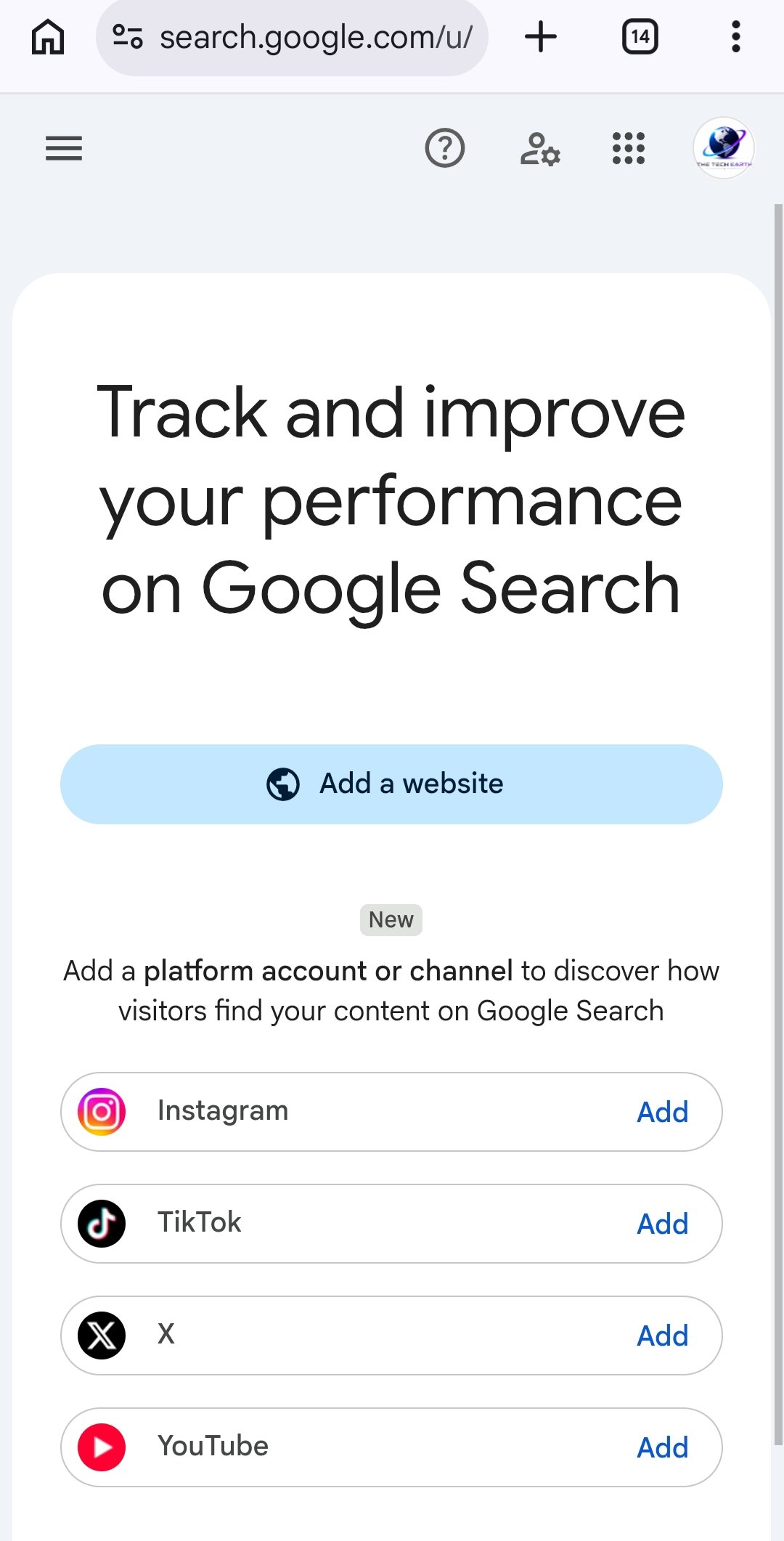
Step 2: Add Your Website
After opening Google Search Console, you will see an option to add a property. A property represents the website you want to monitor.
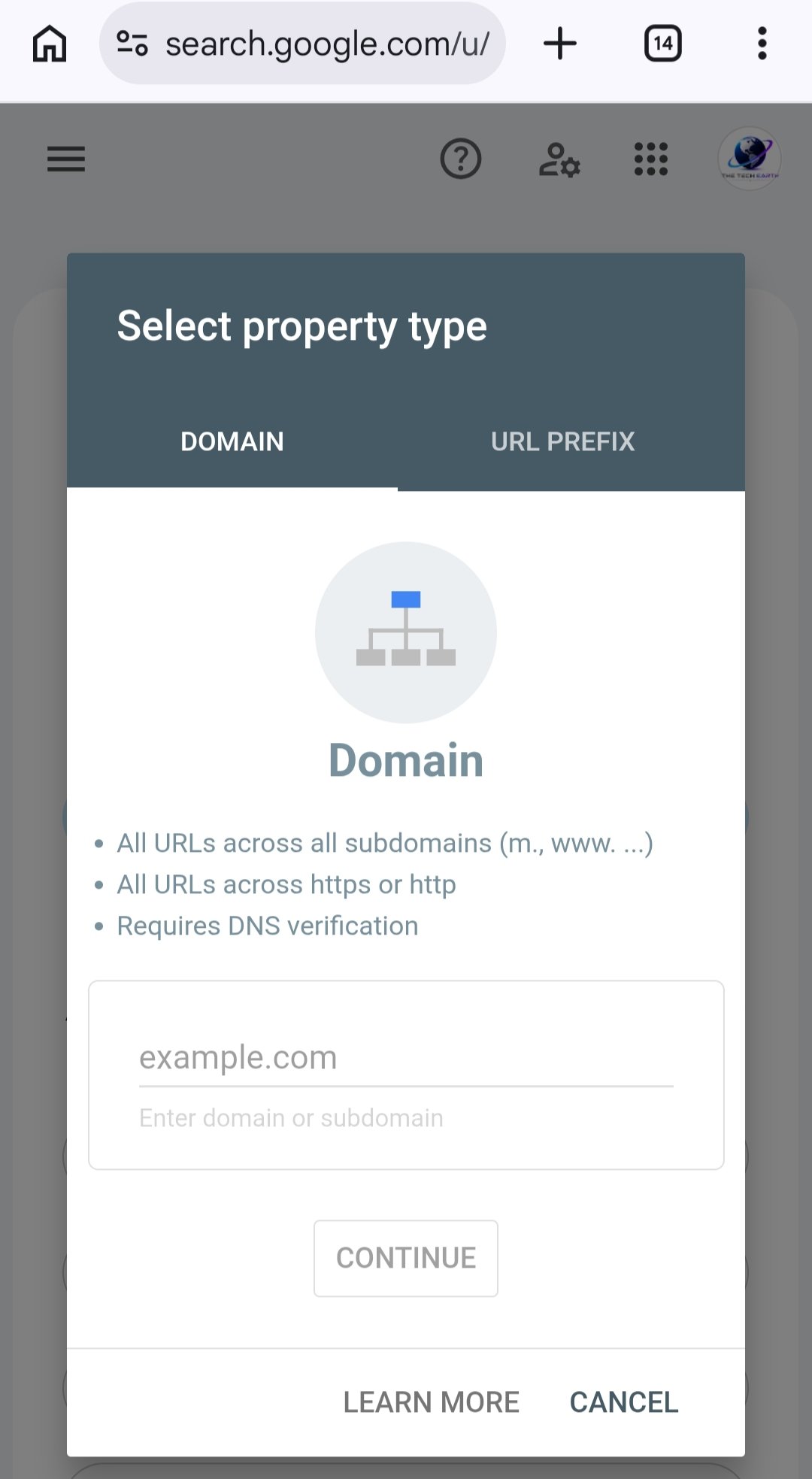
You will find two options: Domain and URL Prefix.
Option 1: Domain
Choose this option if you want to monitor your entire domain, including its subdomains and different protocols.
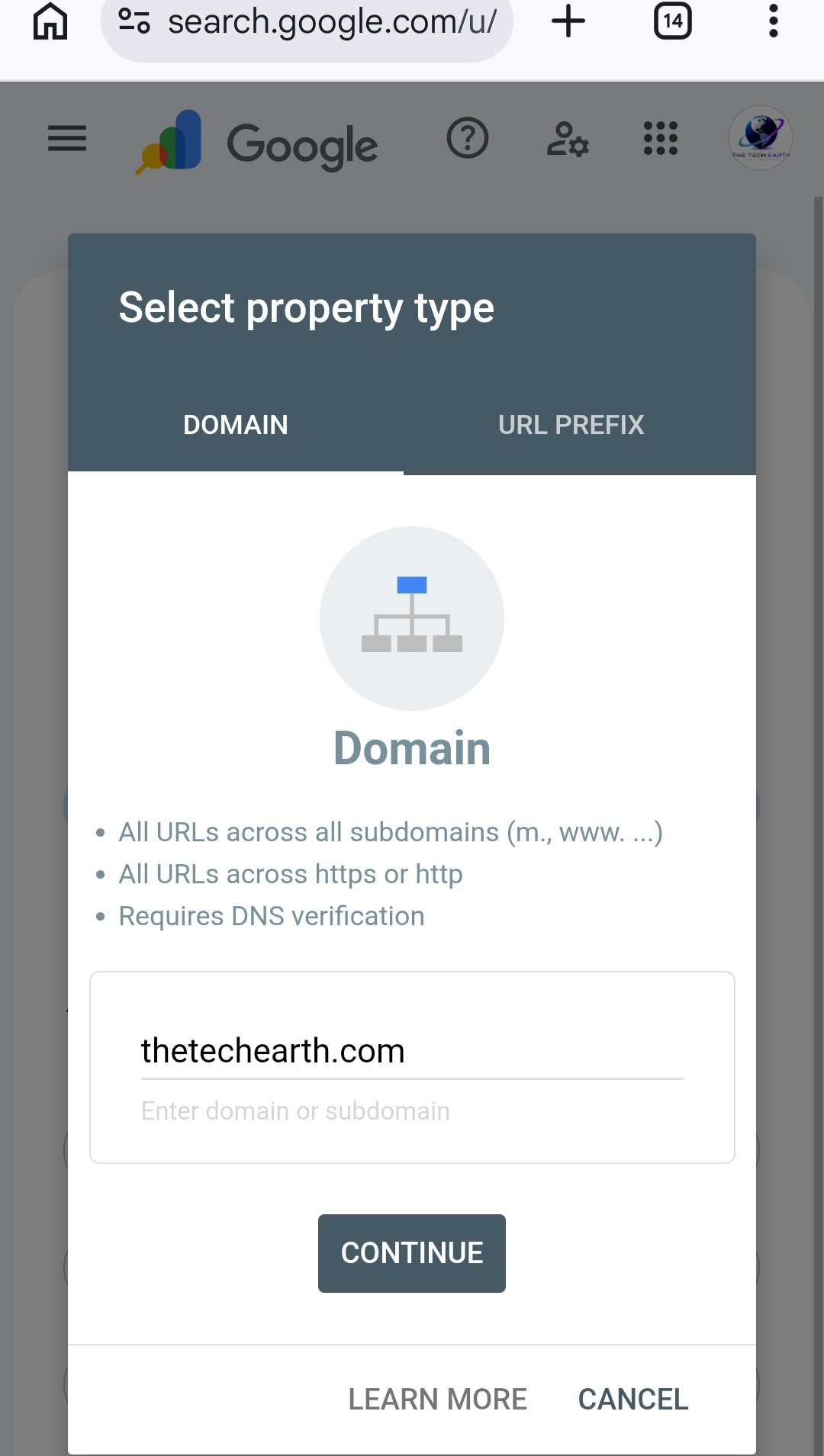
Enter only your domain name.
Example:
If your website URL is:
Enter this in the Domain field:
thetechearth.com
Do not include https:// or www.
After entering your domain, click Continue.
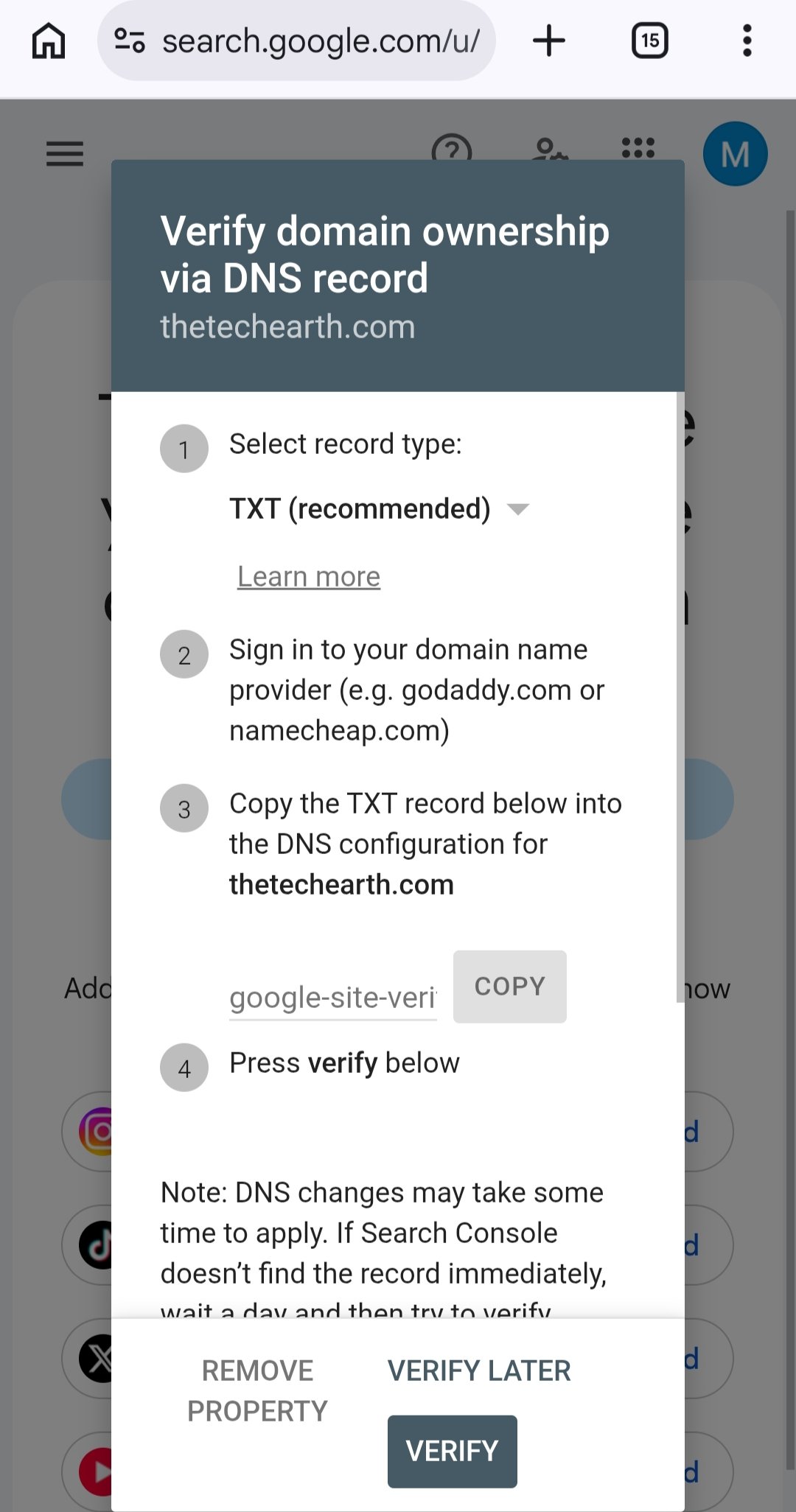
You will need to verify ownership by adding a DNS record to your domain’s DNS settings.
Option 2: URL Prefix
Choose this option if you want to add a specific website URL prefix.
Enter the complete URL, including the protocol.
Example:
Click Continue and follow the available verification instructions.
Depending on your setup, verification methods may include an HTML file, an HTML tag, or another supported method.
Which Option Should You Choose?
Both options can be useful, but they work differently.
- Domain: Covers the entire domain, including its subdomains and HTTP/HTTPS versions. DNS verification is required.
- URL Prefix: Covers only the exact URL prefix you enter. Other URL versions or subdomains may need separate properties.
My suggestion: If you can access your domain’s DNS settings, choose the Domain option. If you prefer another available verification method, URL Prefix may be suitable.
You do not need to add both options to get started. Choose the one that suits your needs.
Step 3: Verify Your Website
Website verification confirms to Google that you have permission to manage the website property.
If you selected the Domain option, follow these steps:
- Copy the TXT record provided by Google Search Console.
- Open your domain provider’s DNS settings, such as Hostinger or GoDaddy.
- Add the TXT record exactly as instructed.
- Save the DNS changes.
- Return to Google Search Console and click Verify.
DNS changes may take some time to become available. If verification fails, check that you added the record correctly and try again later.
Once your website is verified, you can start using Google Search Console to monitor its search performance.
How to Submit a Sitemap in Google Search Console
A sitemap is a file that lists important URLs on your website. It helps Google discover your website pages.
The sitemap URL depends on your website platform and settings.
WordPress Website
If you use WordPress with the Rank Math SEO plugin, your sitemap will commonly be available at:
Replace thetechearth.com with your own domain.
Open the sitemap URL in your browser to check whether it works.
Shopify Website
Shopify automatically generates a sitemap for your online store.
Your sitemap URL is usually:
Replace yourstore.com with your own store domain.
Note: Which Sitemap Should You Submit?
- WordPress with Rank Math:
sitemap_index.xml - Shopify:
sitemap.xml
Check that the sitemap URL works before submitting it.
Steps to Submit Your Sitemap
- Open Google Search Console.
- Select your verified website.
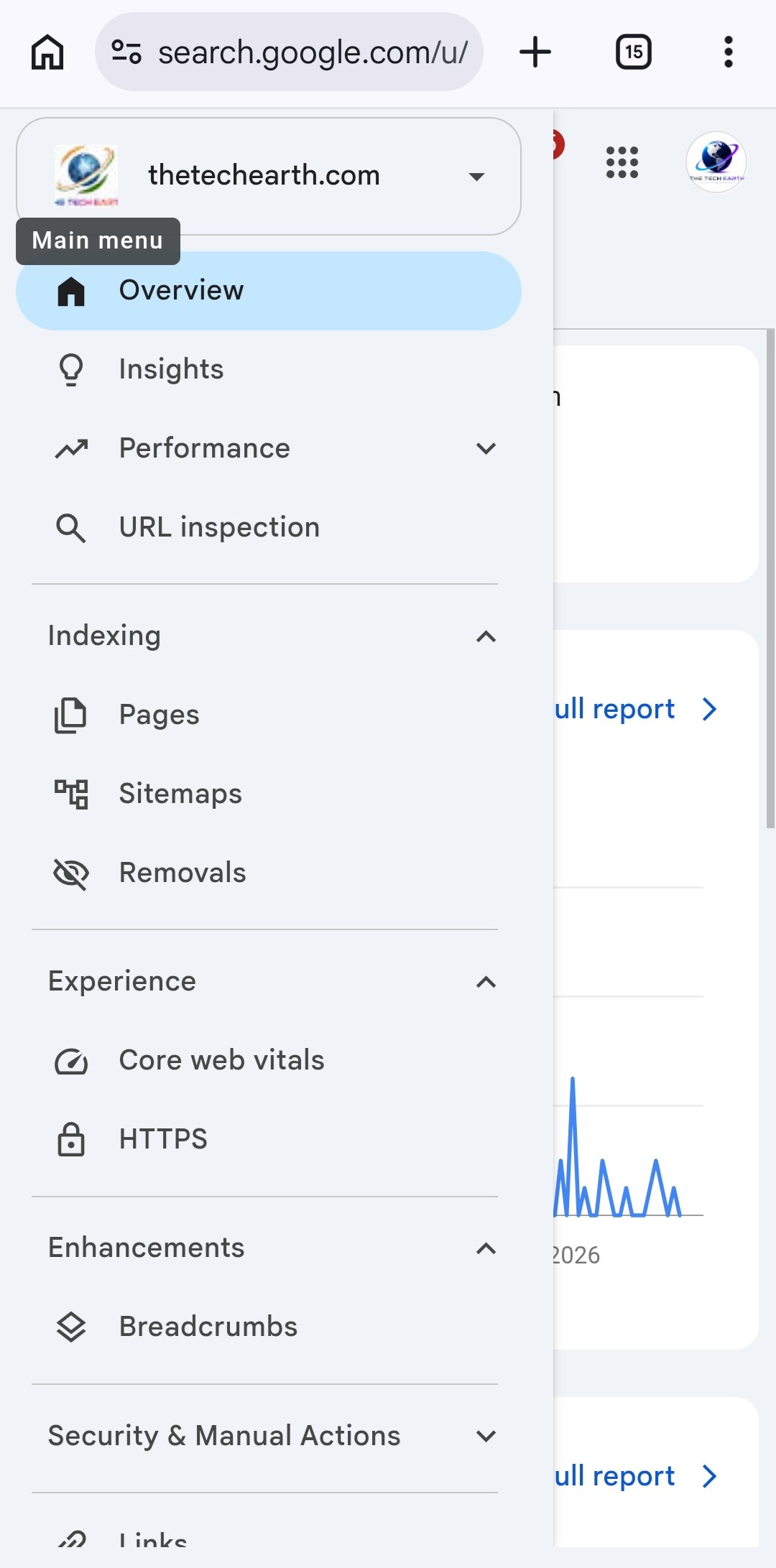
- Click Sitemaps in the left-side menu.
- Find the Add a new sitemap field.
- Enter the correct sitemap path.
- Click Submit.
- Check the submission status and fix any errors if necessary.
Submitting a sitemap helps Google discover your pages, but it does not guarantee that every page will be indexed.
How to Get a New Blog Post Indexed by Google
After publishing a new article, you can use Google Search Console to check its indexing status and request indexing.
Follow these steps.
Step 1: Publish Your Article
First, publish your article on your website.
Make sure the article opens without requiring a login and that you have not accidentally blocked search engines from indexing it.
Step 2: Open the URL Inspection Tool
Open Google Search Console and select your website.
At the top of the page, you will find the URL Inspection field.
Copy the complete URL of your published article and paste it into this field.
For example:
Use your actual article URL.
Step 3: Check the Indexing Status
After entering the URL, Google Search Console will show information about the page.
If the page is already indexed, you may see a message such as “URL is on Google.”
If the page is not indexed, you may see “URL is not on Google” along with additional information about its status.
Do not worry immediately. First, read the information shown in the report.
Step 4: Request Indexing
If the page is accessible and eligible for indexing, click Request Indexing when the option is available.
Google will process your request. You may see a confirmation message such as “Indexing requested.”
This does not mean the page has already been indexed. Google still needs to crawl and evaluate it.
Step 5: Check Your Article Again
After some time, return to URL Inspection and check the page’s status again.
You do not need to submit the same request repeatedly every day.
For important new articles, you can use URL Inspection to check their status and request indexing when appropriate.
Remember: Requesting indexing does not guarantee that Google will index your article or show it at the top of search results.
Important Features of Google Search Console
Google Search Console provides several reports that help you understand your website’s search performance.
1. Performance Report
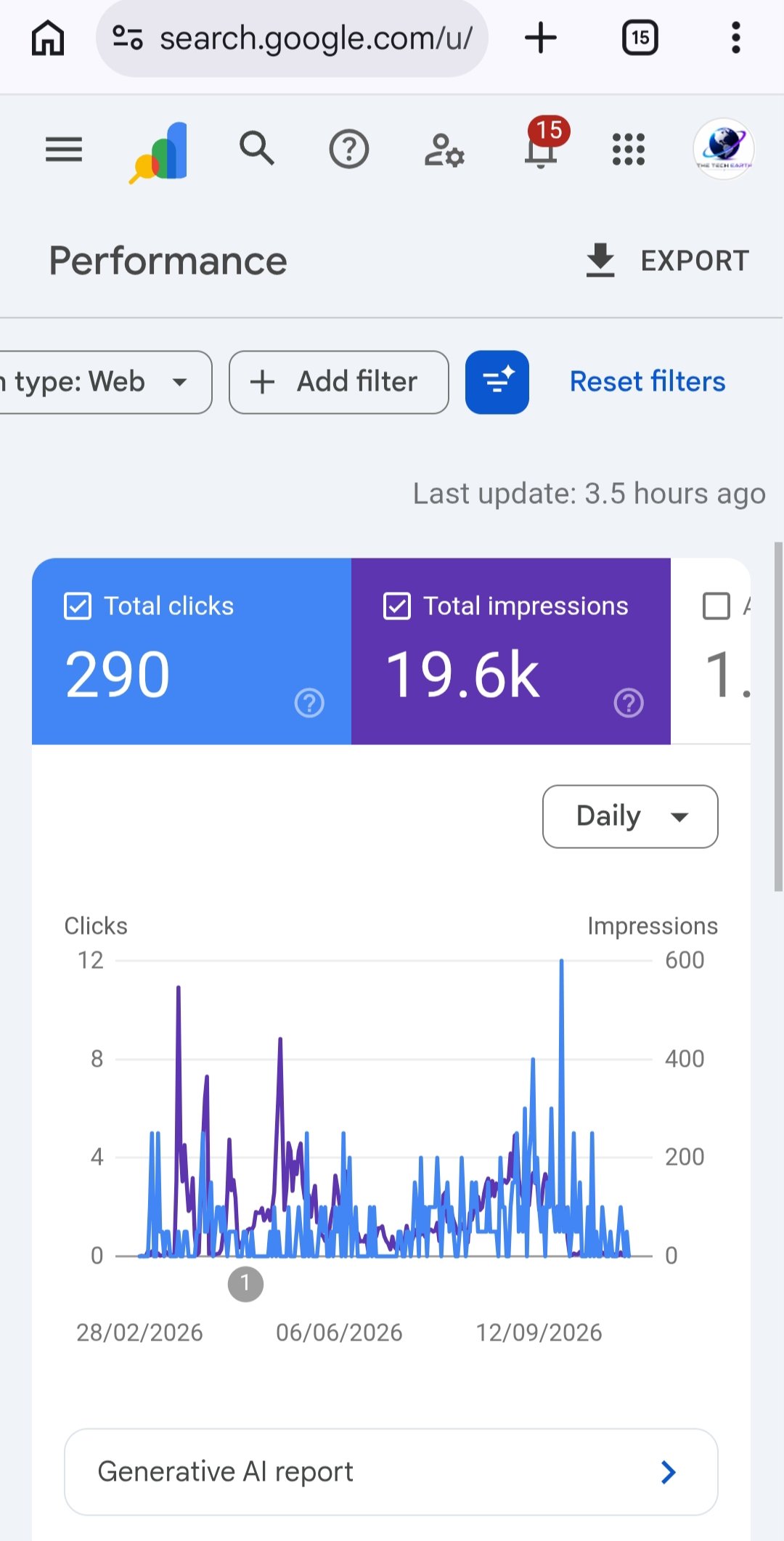
The Performance report shows how your website performs in Google Search.
You can check the following information:
- Clicks: How many times users clicked your website in Google Search results.
- Impressions: How many times your website appeared in Google Search results.
- CTR: The percentage of impressions that resulted in clicks.
- Average Position: The average position of your website’s search results for the queries included in the report.
You can also analyze data by search queries, pages, countries, and devices.
2. URL Inspection Tool
This tool helps you check the indexing status of a specific URL and understand whether Google has indexed it.
It can also provide information about the indexed version of a page and allow you to test the live URL.
3. Page Indexing Report
This report helps you understand which pages Google has indexed and which pages are not indexed.
It may also show reasons why some pages have not been indexed.
Remember that not every non-indexed page has an error. For example, redirected pages, duplicate URLs, and pages intentionally marked as noindex may not need to be indexed.
4. Sitemaps Report
This report shows information about your submitted sitemaps.
You can check their processing status and identify sitemap-related problems.
5. Links Report
The Links report provides information about links Google has discovered for your website.
It includes internal links between your own pages and external links from other websites.
You can use this information to better understand how your website pages are connected.
What to Do If Your Article Is Not Indexed by Google
If your article is not appearing in Google Search after publication, check the following points.
1. Check URL Inspection
Enter the article URL in Google Search Console and review its indexing status.
2. Make Sure the Page Is Accessible
Check that your article opens properly and does not show a server error or require visitors to log in.
3. Check the Noindex Setting
If you want Google to index your article, make sure you have not accidentally added a noindex directive.
4. Add Internal Links
Link your article from relevant category pages and other related articles on your website.
This helps readers and search engines discover your content.
5. Publish Helpful Content
Write original, useful content that answers the reader’s question clearly.
Avoid copying other websites or repeating keywords unnecessarily.
6. Check Your Sitemap
Make sure your sitemap is accessible and includes the important pages you want Google to discover.
7. Give Google Time
Indexing does not always happen immediately. Some pages may take days or longer to be indexed.
A delay does not automatically mean that something is wrong with your website.
How to Improve Website Traffic Using Google Search Console
Google Search Console does not directly increase your website traffic. However, its reports can help you make better SEO decisions.
For example, suppose one of your articles receives many impressions but very few clicks.
You can review its title and search queries to understand whether the title clearly explains what the article offers and matches the user’s search intent.
You can also identify search queries that already bring impressions to your website and use them to plan related, helpful articles.
Review your search performance regularly and improve your content where needed.
Avoid keyword stuffing and clickbait titles. Focus on useful content that answers the reader’s question.
Performance Dashboard – Google Search Console
Frequently Asked Questions (FAQs)
1. Is Google Search Console free?
Yes. Google Search Console is a free tool provided by Google.
2. Can Google Search Console make my website rank on Google?
No. Search Console helps you monitor search performance and identify possible problems, but it cannot guarantee rankings.
3. How long does it take for an article to get indexed?
There is no fixed time. Some pages may be indexed quickly, while others may take days or weeks, or may not be indexed at all.
4. Why are my pages not indexed even after submitting a sitemap?
Submitting a sitemap helps Google discover your pages, but it does not guarantee indexing. Check the page’s accessibility, content, duplication, and indexing settings.
5. Should I request indexing for every new article?
You can use URL Inspection for important new or updated pages. However, repeatedly submitting the same request does not guarantee faster indexing.
Conclusion
Google Search Console is a useful free tool for bloggers, businesses, and website owners who want to understand their website’s performance in Google Search.
It helps you check indexing status, submit sitemaps, analyze search queries, monitor clicks and impressions, and identify possible website problems.
If you want to grow your website, review your Search Console data regularly and use it to improve your content and SEO.
Remember: Good SEO takes time. Focus on helpful content, a well-organized website, and regular improvements instead of expecting instant rankings.

Mujtaba Ansari is a Software Engineer, Founder & CEO of The Tech Earth. He writes about technology, AI, software, cybersecurity, blogging, Health tech, Agri Tech and digital trends to help readers stay updated with the latest innovations.
Was this article helpful?
Your feedback helps us improve The Tech Earth.
Helpful: 0 Not helpful: 0