

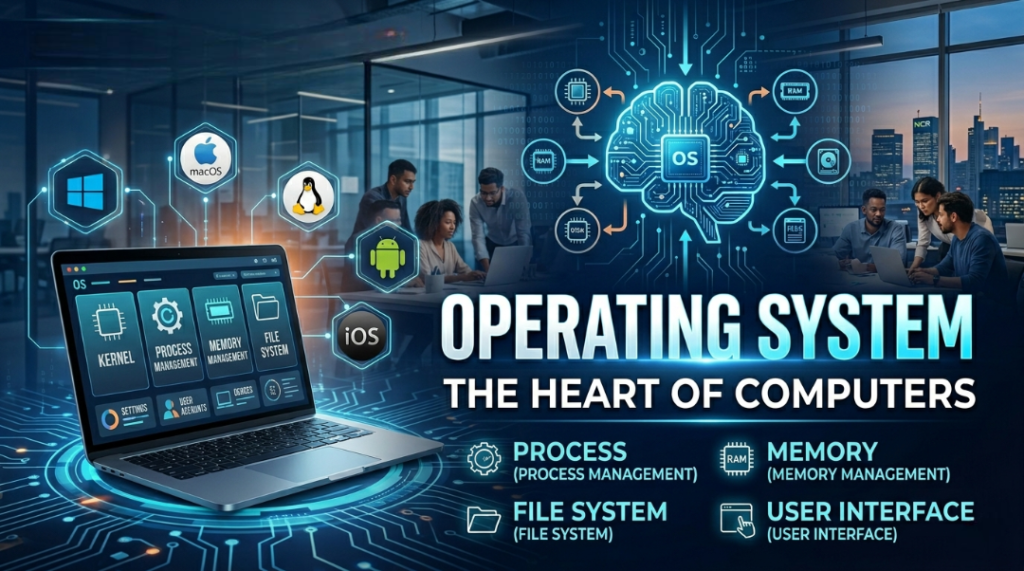
What is an Operating System (OS)?
An Operating System (OS) is a collection of software programs that manages and controls all the functions of a computer system. It acts as an interface between the user and the computer hardware, making it easier for users to interact with the system and perform tasks efficiently.
An Operating System (OS) is a powerful system software that manages all hardware and software resources of a computer. It acts as a bridge between the user and the machine, allowing users to interact with devices easily and efficiently.
Without an operating system, a computer cannot function—it is just a collection of hardware components. The OS brings life to the system by enabling applications to run, managing resources, and ensuring smooth communication between software and hardware.
🔹 Key Functions of an Operating System :
Process Management: Handles running programs and multitasking
Memory Management: Allocates and manages system memory
File System Management: Organizes and stores data efficiently
Device Management: Controls hardware like printers, keyboards, and drives
Security & Access Control: Protects data and system resources
User Interface (UI): Provides GUI or CLI for user interaction
🔹 Popular Operating Systems (Desktop & Server) :
Microsoft Windows
macOS
Linux
Unix
ChromeOS
MS-DOS
🔹 Mobile Operating Systems
Android
iOS
Bada
BlackBerry OS
Windows Phone
Symbian OS
Tizen
🚀 Latest Operating System Trends Updated in 2026 :
Modern operating systems are evolving rapidly with new technologies:
AI-Integrated OS: Smart automation, voice assistants, and predictive performance
Cloud-Based Operating Systems: Lightweight systems like ChromeOS relying on cloud computing
Enhanced Security: Biometric authentication, zero-trust security models
Cross-Platform Compatibility: Seamless syncing across mobile, desktop, and IoT devices
Edge Computing Support: Faster processing near data sources
Virtualization & Containers: Efficient app deployment using Docker and virtual machines
Energy Efficiency: Optimized for better battery life and green computing
Evolution of Operating Systems: Types, Features & Modern Advantages:
The evolution of operating systems (OS) reflects how computing has transformed from simple task execution to powerful, intelligent, and multi-functional environments. Over time, operating systems have been upgraded to improve performance, efficiency, multitasking, and user experience.
Below are the key types of operating systems that played a major role in this evolution:
(a) Multi-Programming Operating System –
A Multi-Programming Operating System allows multiple programs to run simultaneously within a single system. It maximizes CPU utilization by keeping several tasks in memory and switching between them efficiently.
👉 Modern relevance (2026): Forms the foundation of multitasking in today’s systems like Microsoft Windows and Linux.
(b) Batch Processing Operating System –
A Batch Processing Operating System executes a group of similar tasks together without user interaction. Jobs are collected, grouped, and processed sequentially.
👉 Examples: Payroll systems, billing systems
👉 Modern relevance: Still used in large-scale data processing and backend automation.
(c) Time-Sharing Operating System –
A Time-Sharing Operating System enables multiple users to share system resources simultaneously. Each user gets a small time slice of CPU, creating the illusion of parallel execution.
👉 Key feature: Efficient memory and process management
👉 Modern use: Cloud computing and multi-user environments like Unix.
(d) Real-Time Operating System (RTOS) –
A Real-Time Operating System (RTOS) processes data and provides output within a strict time limit. It is designed for systems where timing is critical.
👉 Key features:
Minimal user interaction
Immediate response time
High reliability
👉 Applications: Industrial automation, robotics, medical systems, aerospace
(e) Single-Tasking Operating System –
A Single-Tasking Operating System allows only one task to be executed at a time by a user. It is simple but limited in functionality.
👉 Example: MS-DOS
👉 Modern relevance: Rare today, mostly replaced by multitasking systems
(f) Multi-Processing Operating System –
A Multi-Processing Operating System uses two or more CPUs (processors) within a single system to perform tasks simultaneously. This significantly improves speed and efficiency.
👉 Key benefits:
Faster processing
Better system performance
High reliability
👉 Modern relevance (2026): Essential for high-performance computing, AI workloads, and servers running on systems like Linux.
🚀 Latest Trends in Operating System (OS) Evolution (2026) –
Modern operating systems are evolving beyond traditional concepts:
AI-Powered OS: Smart automation and predictive performance
Cloud-Native Systems: Lightweight OS like ChromeOS
Real-Time Data Processing: Faster decision-making systems
Virtualization & Containers: Efficient resource utilization
IoT & Edge Integration: OS designed for smart devices and edge computing
Enhanced Security Models: Zero-trust architecture and biometric authentication
Types of Operating System (OS): Single User vs Multi-User :
Operating systems can be classified based on the number of users they support at a given time. This classification is essential for understanding how efficiently a system can handle user access, resources, and workloads.
🔹 (1) Single-User Operating System –
A Single-User Operating System is designed to allow only one user to operate the system at a time. All system resources such as CPU, memory, and storage are dedicated to a single user session.
👉 Key Features:
Simple and easy to use
Suitable for personal devices
Limited resource sharing
👉 Examples:
MS-DOS
Personal computing environments on Microsoft Windows (single-user mode)
👉 Modern Relevance (2026):
Still widely used in personal laptops, desktops, and standalone systems where only one active user session is required.
🔹 (2) Multi-User Operating System –
A Multi-User Operating System allows multiple users to access and operate the system simultaneously. It efficiently manages system resources to ensure smooth performance for all users.
👉 Key Features:
Supports multiple user sessions at the same time
Advanced memory and process management
High security and access control
👉 Examples:
Unix
Linux
Real-World Usage in 2026 –
Widely used in servers, cloud computing platforms, enterprise systems, and shared environments where many users need simultaneous access.
🚀 Latest Trends in User-Based OS (2026) :
Cloud-Based Multi-User Systems: Remote access with scalable infrastructure.
Virtual Desktops (VDI): Multiple users on a single physical machine
AI-Based Resource Allocation: Smart distribution of system resources
Enhanced Security: Role-based access and biometric authentication
Cross-Device Access: Seamless login across devices and platforms
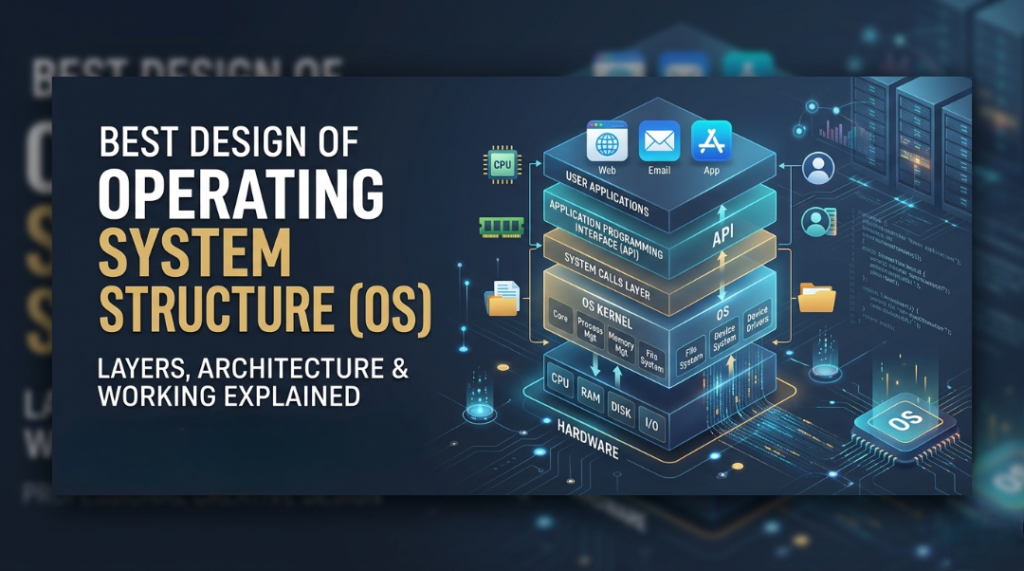
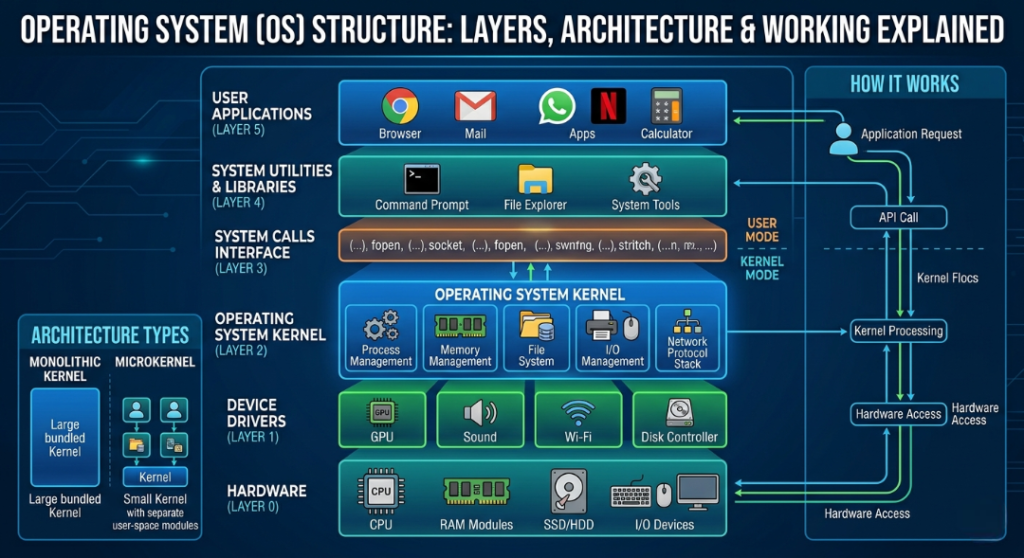
Operating System Structure (OS): Layers, Architecture & Working Explained :
The structure of an Operating System (OS) is based on a layered architecture that ensures smooth interaction between hardware and software. Each layer has a specific role in managing system operations, improving performance, and providing a seamless user experience.
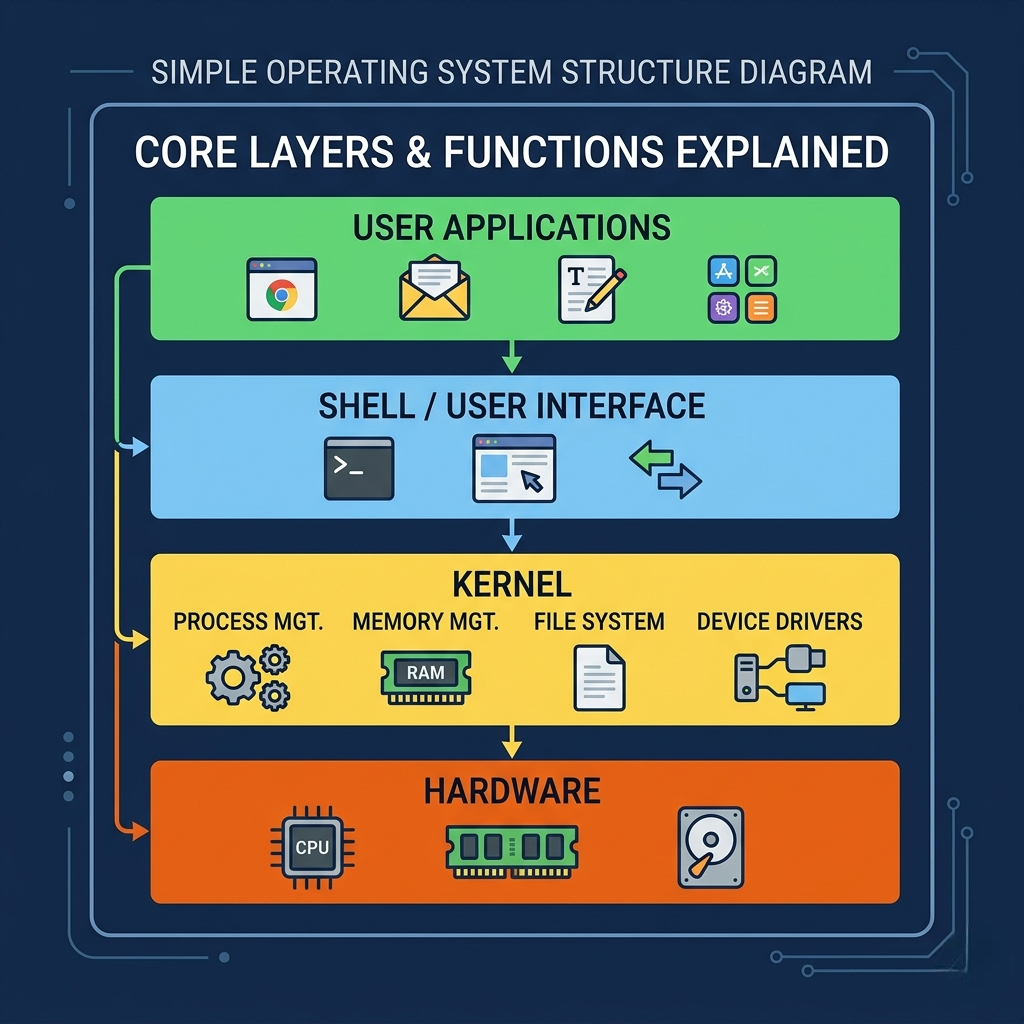
🔹 Main Layers of Operating System
An OS is typically composed of four key layers, working together to run a computer efficiently:
- Hardware Layer –
This is the physical foundation of the system, including the CPU, memory (RAM), storage devices, and input/output hardware. The OS directly communicates with hardware to control and manage system resources.
- Software Layer –
This layer includes essential system-level software that supports the functioning of the OS and provides an environment for running programs smoothly. - System Programs –
System programs act as an interface between the OS and application software. These include utilities, compilers, file management tools, and system services that help maintain and optimize the system. - Application Programs –
These are end-user applications such as web browsers, media players, and office tools that perform specific tasks and run on top of the operating system.
🧠 Understanding the OS Structure :
The operating system sits between hardware and application programs, acting as a mediator that ensures efficient communication, resource allocation, and smooth execution of tasks.
📅 Historical Insight :
The first operating system was introduced around 1961, marking a major milestone in the evolution of modern computing.
⚡ Importance of Operating System
Without an operating system, a computer is non-functional—just like a body without a soul. The OS transforms inactive hardware into a fully functional system, enabling users to perform tasks efficiently.
Booting (Bootstrapping): Definition, Types & How It Works (2026 Latest Guide) :
Booting, also known as bootstrapping, is the process that starts a computer and prepares it for use. When you power on a system, the BIOS (Basic Input/Output System) or modern UEFI firmware automatically detects the operating system and loads it from secondary storage (like HDD or SSD) into primary memory (RAM). This process makes the system software ready for user interaction.
In simple terms, booting is the process of loading the operating system from storage into RAM so the computer can function properly.
How Booting Works (Step-by-Step)
The computer is powered ON.
BIOS/UEFI performs a Power-On Self Test (POST) to check hardware.
It identifies the bootable device (HDD/SSD).
The operating system is loaded into RAM.
The system becomes ready for use.
Types of Booting :
- Cold Booting (Hard Booting)
Cold booting occurs when a computer is started from a completely powered-off state.
Example: Turning ON your PC using the power button.
It performs a full hardware check (POST).
Takes slightly more time compared to warm booting. - Warm Booting (Soft Booting)
Warm booting happens when a running computer is restarted without turning off the power completely.
Example: Clicking Restart on your system.
Skips some hardware checks, making it faster.
Used to refresh the system or apply updates.
Main Points –
Booting is essential for initializing a computer system.
It loads the operating system into RAM from storage.
BIOS/UEFI plays a crucial role in this process.
There are two main types: Cold Booting and Warm Booting.
BIOS (Basic Input/Output System): Definition, Functions & Role –
BIOS (Basic Input/Output System) is a fundamental system software embedded in the motherboard that runs immediately when you start your computer. It is the first program your system interacts with, and the initial screen you see during startup is controlled by BIOS.
What Does BIOS Do?
Detects and initializes essential hardware components such as RAM, processor, keyboard, mouse, and hard drive
Performs a Power-On Self Test (POST) to ensure all hardware is working properly
Configures system settings for smooth operation
Prepares the system to load the operating system into memory.
Simple Definition –
BIOS acts as a bridge between your computer’s hardware and software, ensuring that all components are properly recognized and configured before the operating system starts.
Important Features of BIOS –
Stored permanently on the motherboard (firmware)
Runs automatically when the computer is powered on
Ensures proper communication between hardware components
Essential for system startup and booting process
User Interface (UI): Definition, Types & Examples –
User Interface (UI) is the medium that connects a user with a computer system. It allows users to interact with the system by giving instructions, and the computer processes those instructions to display the desired output.
In simple terms :
UI acts as a bridge between the user and the computer, making communication easy and efficient.
Types of User Interface
- Command Line Interface (CLI)
A Command Line Interface (CLI) allows users to interact with a computer by typing text-based commands.
Users must remember specific commands to perform tasks
Faster and more powerful for advanced users
Requires technical knowledge
Example: DOS (Disk Operating System) - Graphical User Interface (GUI)
A Graphical User Interface (GUI) enables users to interact with the computer using visual elements like icons, buttons, menus, and windows.
Easy to use and user-friendly
No need to memorize commands
Uses mouse, touch, or gestures for interaction
Common in modern operating systems like Windows, macOS, and Android
Some important Features of User Interface –
Facilitates communication between user and system
Accepts user input and displays output
Enhances user experience and productivity
Available in multiple forms (CLI & GUI)
Microsoft Windows Evolution (1985–2026): Complete Timeline & Latest Technology Updates :
Here is a well-structured, SEO-optimized timeline of Microsoft Windows—from its early versions to the latest modern advancements:
📅 Early Windows Versions (1985–1990) –
Windows 1.01 — 20 November 1985 (Version 1.0)
Windows 1.02 — May 1986 (Version 1.02)
Windows 1.03 — August 1986 (Version 1.03)
Windows 1.04 — April 1987 (Version 1.04)
Windows 2.03 — 9 December 1987 (Version 2.03)
Windows 2.10 — 27 May 1988 (Version 2.10)
Windows 2.11 — 13 March 1989 (Version 2.11)
Windows 3.0 — 22 May 1990 (Version 3.0)
🚀 Major Windows Releases (1995–2021) –
Windows 95 — Introduced Start Menu & Taskbar
Windows 98 — Improved hardware support & internet integration
Windows XP (2001) — Stable, user-friendly, and widely popular
Windows 7 (2009) — Performance improvements & modern UI
Windows 8/8.1 (2012–2013) — Touch-focused interface
Windows 10 (2015) — Unified platform, regular updates
🔥 Latest Windows & Technology Trends (2021–2026) –
Windows 11 (2021–Present)
Redesigned UI with centered Start Menu
Enhanced gaming performance (DirectX 12 Ultimate)
Better virtual desktops & multitasking
AI Integration (2024–2026)
Built-in AI assistants like Copilot
Smart search, automation, and productivity tools
Cloud & Hybrid Computing
Deep integration with cloud services (OneDrive, Azure)
Remote work and cloud-based OS environments
Security Enhancements
TPM 2.0, Secure Boot, and advanced encryption
Improved protection against malware and cyber threats
Touch, Voice & Gesture Controls
Better support for tablets, 2-in-1 devices, and voice commands
Functions of Operating System (OS): Key Roles Explained (Latest upto date 2026 Guide) :
An Operating System (OS) is the core software that manages computer hardware and software resources. It performs several essential functions to ensure smooth, efficient, and secure system operation.
🔧 Main Functions of an Operating System
- Memory Management
The OS manages the computer’s memory (RAM), allocating and deallocating space to programs as needed. It ensures efficient use of memory and prevents conflicts between processes. - Process Management
It handles the execution of multiple programs (processes), schedules tasks, and ensures that each process gets the required CPU time for smooth multitasking. - File Management
The OS organizes, stores, and manages files on storage devices. It controls file access, naming, permissions, and directory structures. - Device Management
It manages hardware devices like printers, keyboards, and storage drives through drivers, ensuring proper communication between hardware and software. - Security Management
The OS protects data and resources by implementing authentication, authorization, and protection mechanisms against unauthorized access. - Error Handling
It detects system errors, reports them, and takes appropriate actions to maintain system stability and prevent crashes. - System Performance Management
The OS monitors and optimizes overall system performance, ensuring efficient use of CPU, memory, and other resources.
Objective Questions
Operating System MCQs (Basics) – Questions & Answers (2026 Guide) :
Q1. What is an Operating System (OS)?
(a) A group of devices
(b) A set of programs
(c) A group of users
(d) All of the above
(e) None of these
✅ Correct Answer: (b) A set of programs
👉 Explanation: An operating system is a collection of programs that manages computer hardware and software.
Q2. When was the operating system first used?
(a) 1961
(b) 1836
(c) 1940
(d) 1955
(e) 1991
✅ Correct Answer: (d) 1955
👉 Explanation: Early operating systems began to appear in the mid-1950s with the development of batch processing systems.
Q3. When was Android released?
(a) 2003
(b) 2002
(c) 2009
(d) 2008
(e) None of these
✅ Correct Answer: (d) 2008
👉 Explanation: Android was officially released in 2008 with the launch of the first Android-powered device.
Q4. Linux is which type of software?
(a) Commercial
(b) Proprietary
(c) Shareware
(d) Open Source
(e) All of the above
✅ Correct Answer: (d) Open Source
👉 Explanation: Linux is open-source software, meaning its source code is freely available for modification and distribution.
Q5. What is the full form of BIOS?
(a) Basic Input Output Software
(b) Basic Input Output System
(c) Basic Input Output Operator System
(d) Basic Input Outer Security
(e) None of these
✅ Correct Answer: (b) Basic Input Output System
👉 Explanation: BIOS is firmware that initializes hardware during the computer startup process.
Q6. Which of the following is an example of an Operating System?
(a) Music application
(b) Business software
(c) Linux
(d) Medical software
(e) All of the above
✅ Correct Answer: (c) Linux
👉 Explanation: Linux is an operating system, while the others are application software.
Q7. An Operating System manages which of the following?
(a) Memory
(b) Disk
(c) Processor
(d) I/O devices
(e) All of the above
✅ Correct Answer: (e) All of the above
👉 Explanation: The OS manages all system resources including memory, storage, CPU, and input/output devices.
Q8. What is the full form of MS-DOS?
(a) Microsoft Disk Only System
(b) Microsoft Drive Operation Security
(c) Microsoft Drive Operation System
(d) Microsoft Disk Operating System
(e) None of these
✅ Correct Answer: (d) Microsoft Disk Operating System
👉 Explanation: MS-DOS is an early operating system developed by Microsoft for disk-based computers.
Q9. What is Virtual Memory?
(a) RAM
(b) Non-storage memory
(c) I/O control
(d) Memory used when RAM is full
(e) All of the above
✅ Correct Answer: (d) Memory used when RAM is full
👉 Explanation: Virtual memory uses disk space to extend RAM when the physical memory is insufficient.
Q10. What is meant by Scheduling in Operating Systems?
(a) Allowing jobs to use the processor
(b) Providing fast data to the processor
(c) Receiving data from the monitor
(d) All of the above
(e) None of these
✅ Correct Answer: (a) Allowing jobs to use the processor
👉 Explanation: Scheduling is the process of managing CPU time among multiple processes efficiently.
Q11. What is the process of starting or restarting a computer called?
(a) Exit
(b) Open
(c) Logout
(d) Boot
(e) Shutdown
✅ Correct Answer: (d) Boot
👉 Explanation: The process of starting or restarting a computer is known as booting.
Q12. Which was the first Microsoft operating system?
(a) Windows 7
(b) MS-DOX
(c) Windows 8
(d) MS-DOS
(e) None of these
✅ Correct Answer: (d) MS-DOS
👉 Explanation: MS-DOS (Microsoft Disk Operating System) was Microsoft’s first widely used operating system.
Q13. If a computer does not have , it cannot boot. (a) Compiler (b) Loader (c) Operating System (d) Assembler (e) Interpreter ✅ Correct Answer: (c) Operating System 👉 Explanation: Without an operating system, the computer cannot load or function properly during booting. Q14. What is the name of the program that controls the overall operations of a computer? (a) The Operating System (b) A browser (c) An application program (d) The file manager (e) All of the above ✅ Correct Answer: (a) The Operating System 👉 Explanation: The operating system manages all hardware and software operations of a computer. Q15. is a program that makes it easier to use a computer.
(a) Application
(b) Network
(c) Operating System
(d) Utility
(e) None of these
✅ Correct Answer: (c) Operating System
👉 Explanation: The operating system provides an interface and environment that makes computer usage simple and efficient.
Q16. MS-DOS is an example of which of the following?
(a) Word processing software
(b) Hardware
(c) Operating System
(d) Application
(e) All of the above
✅ Correct Answer: (c) Operating System
👉 Explanation: MS-DOS (Microsoft Disk Operating System) is a command-line based operating system.
Q17. Which is the first process started by the Linux kernel?
(a) Batch Process
(b) Boot Process
(c) Init Process
(d) Zombie Process
(e) Operating Process
✅ Correct Answer: (c) Init Process
👉 Explanation: The Linux kernel starts the init process (PID 1), which is responsible for initializing all other processes.
Q18. What type of operating system is Linux?
(a) Open Source
(b) Windows
(c) Microsoft
(d) Application
(e) None of these
✅ Correct Answer: (a) Open Source
👉 Explanation: Linux is an open-source operating system, meaning its source code is freely available for modification and distribution.
Q19. Which of the following Windows versions supports 64-bit architecture?
(a) Windows 2000
(b) Windows 98
(c) Windows 95
(d) Windows XP
(e) None of these
✅ Correct Answer: (d) Windows XP
👉 Explanation: Windows XP introduced 64-bit support with its Professional x64 Edition.
Q20. Which version of Windows does NOT have a Start button?
(a) Windows XP
(b) Windows 8
(c) Windows 7
(d) Windows 98
(e) Windows 2000
✅ Correct Answer: (b) Windows 8
👉 Explanation: Windows 8 removed the traditional Start button and introduced the Start Screen.
ANSWERS
 (1)-b  (2)-a   (3)-d   (4)-d
 (5)-b   (6)-c   (7)-e  (8)-d
 (9)-d   (10)-a  (11)-d (12)-d
 (13)-c (14)-a  (15)-c  (16)-c
 (17)-c  (18)-a  (19)-d  (20)-b

Mujtaba Ansari is a Software Engineer, Founder & CEO of The Tech Earth. He writes about technology, AI, software, cybersecurity, blogging, Health tech, Agri Tech and digital trends to help readers stay updated with the latest innovations.